
Fix assets with missing licenses using the license fixer
Files you downloaded one by one, without a pack or a license file, end up
with no license in your library. When you export them, CREDITS.md lists
them under “No License Detected”, which is no help when you write your
game’s credits. In this tutorial you find those assets and record where they
came from, until the app reports that every asset has a license.
You need: a library with at least one folder of loose downloads. The
screenshots use “Unsorted Downloads”, a plain folder (added without pack
details) with two subfolders: ui_icons/, five icons with a README.md that
says they’re CC0, and particles/, three sprites with nothing next to them.
Time: about three minutes.
1. Open Health → Unlicensed
Section titled “1. Open Health → Unlicensed”Scroll to the bottom of the sidebar. The Health section counts library problems; Unlicensed shows how many assets have no license. Click it.
The License fixer replaces the grid. It groups the unlicensed assets by folder, so you fix a whole folder at once.
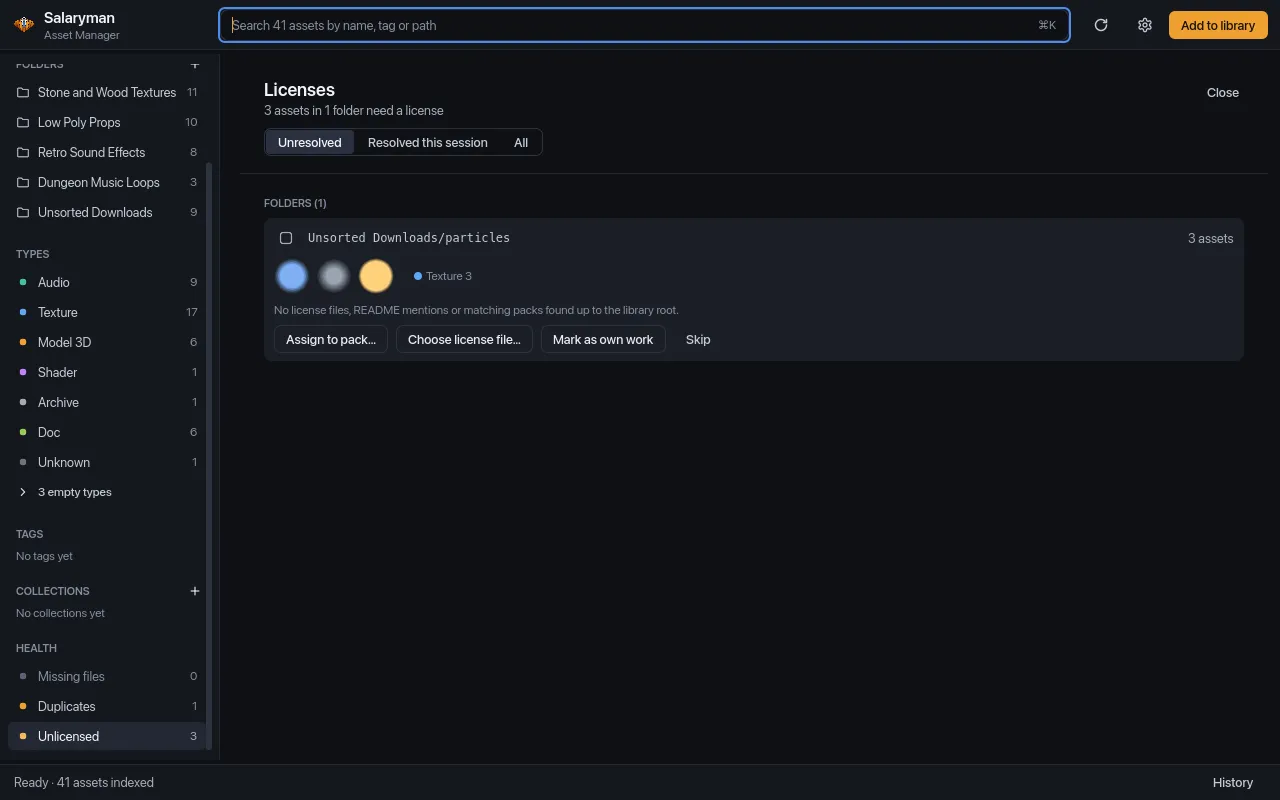
An asset counts as licensed when any of these is true:
- it belongs to a pack (you added its folder as a pack, or assigned it to one here);
- a file next to it has a name starting with
LICENSE,COPYING,CREDITSorREADME(in any case, any extension), or, failing that, the nearest folder above it inside the library folder has one starting withLICENSE,LICENCE,COPYINGorCREDITS; - you picked a license file for it in the fixer;
- you marked it as your own work.
That’s why ui_icons/ isn’t listed: the README.md next to the icons
counts as their license, and their credits will include its text. The
particles/ folder has nothing, so its card says “No license files, README
mentions or matching packs found up to the library root.”
When the fixer does find evidence, such as a license file a few folders up, a README that mentions a license, or a pack with a similar name, the card lists it with a Use button, and the strongest match gets a Use detected license button.
You can also open the fixer with Open license fixer in the command palette, or with Fix… in the export dialog when it warns about assets with no license.
2. Choose how to resolve the folder
Section titled “2. Choose how to resolve the folder”The particles came from an asset site where they were published as CC0. To credit them properly, give them a pack of their own. Click Assign to pack… on the card.
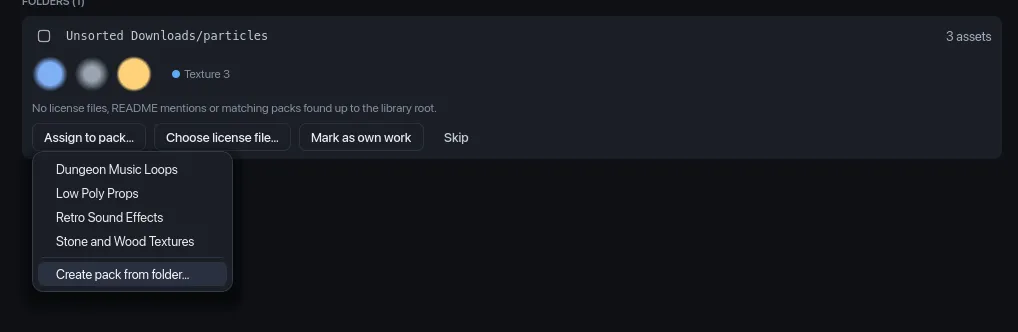
The menu lists your existing packs (pick one if the files came from it), then Create pack from folder…. The other buttons on the card are:
- Choose license file…: pick a license file anywhere on disk; it’s used for every asset in the folder.
- Mark as own work: for files you made yourself. They’re credited under
“Own Work” (“No attribution required”) in
CREDITS.md. - Skip: hide the folder until you reopen the fixer. It stays unlicensed.
Choose Create pack from folder….
3. Fill in the pack details
Section titled “3. Fill in the pack details”The Create pack from folder dialog starts with the folder’s name as the Pack name. Change it to something you’ll recognize in the credits, add the Author and Source URL if you know them, and set the License: type it, or choose an SPDX id from SPDX quick pick… (here CC0-1.0).
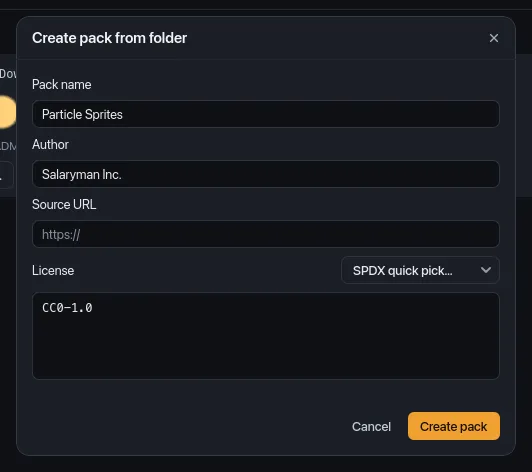
Click Create pack.
4. Check that nothing is left
Section titled “4. Check that nothing is left”The card fades out. The summary now reads “Every asset has a license · 1 resolved”, the status bar says “Licenses: 3 assets resolved”, and Unlicensed in the sidebar drops to 0 and dims.
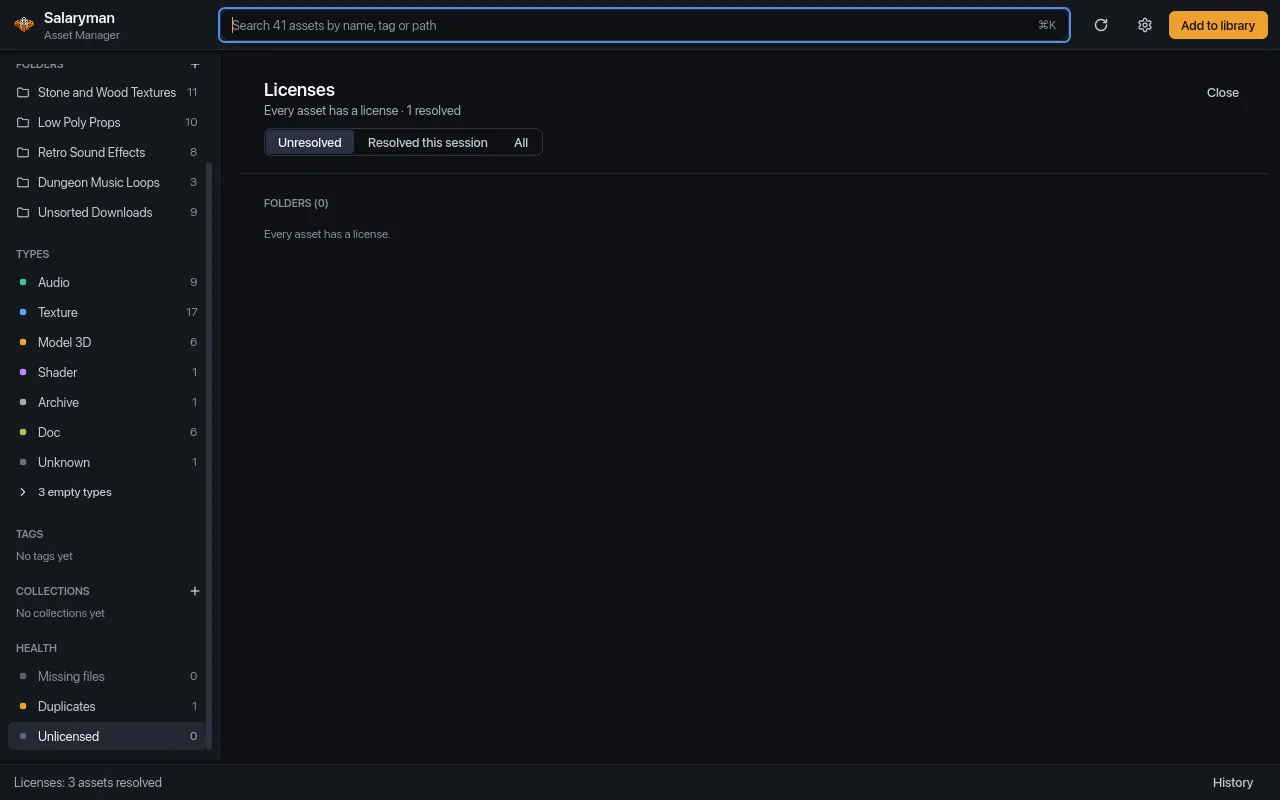
The same rule drives the Health count, the export dialog’s warning and the
“No License Detected” section of CREDITS.md, so an export now credits
every asset. Your choices are saved in the library and survive rescans.
5. Review what you did
Section titled “5. Review what you did”Click Resolved this session at the top of the fixer. Each folder you resolved since opening the fixer is listed with how: here “Resolved: New pack · Particle Sprites”. All shows resolved and unresolved folders together.
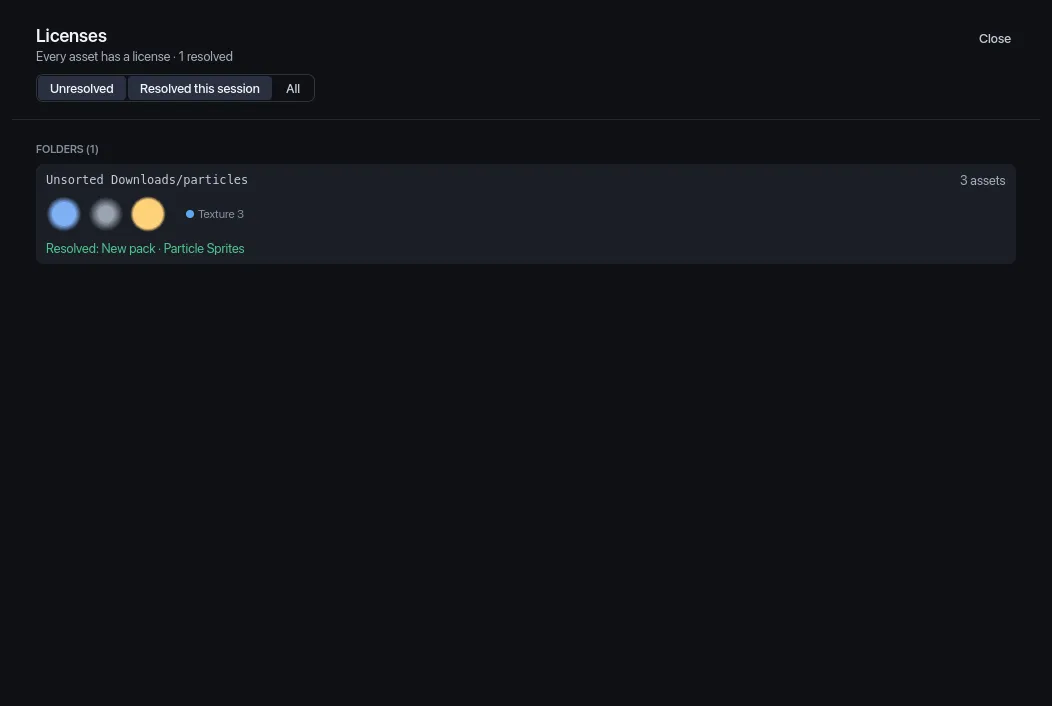
This list starts over each time you open the fixer. Click Close (or press Esc) to go back to the grid.
6. If you got it wrong
Section titled “6. If you got it wrong”Cmd/Ctrl+Z doesn’t undo License fixer actions. Fix a pack from Settings → Folders + packs instead (Cmd/Ctrl+,). The Unsorted Downloads folder now shows Particle Sprites under Pack, with its license below the name.
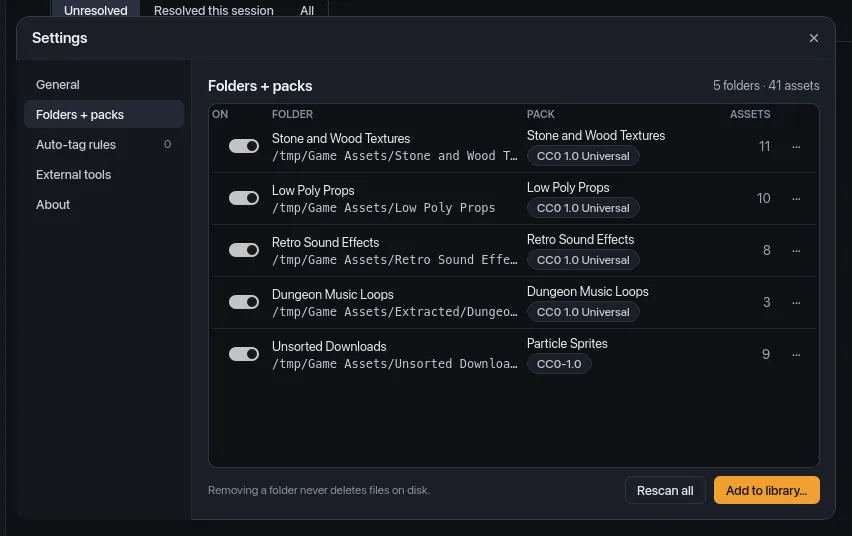
- To correct the name, author, URL or license, click the license chip, or open the row’s ··· menu and choose Edit pack info….
- To take the pack away again, choose Remove pack info… in the same menu and confirm. The assets stay in your library but lose the pack, so they’re back under Unlicensed and you can resolve them differently.
What you did
Section titled “What you did”- Found the assets with no license from Health → Unlicensed.
- Gave a folder of loose downloads a pack with an author and a license.
- Got the Unlicensed count to zero, so
CREDITS.mdcredits everything you export.
- License fixer covers every action, the evidence the fixer looks for, and packs with an empty license field.
- Packs and licenses explains how licenses are detected when you add a folder.
- Health views covers Missing files and Duplicates too.
- Export a collection into a game project shows what the credits look like once everything is licensed.