
Command palette
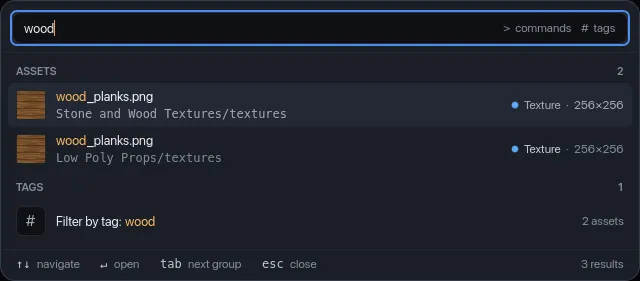
The command palette is one search box for everything: assets, tags and the app’s commands. Press Cmd/Ctrl+K anywhere in the main window to open it, and again to close it. The empty search box in the top bar shows the shortcut at its right end as a reminder.
Searching
Section titled “Searching”Start typing. Results come in groups, in this order:
- Commands whose name matches (up to 10).
- Assets whose name, path, tags or archive contents match, the same way the search box does (up to 20). Each row shows the thumbnail, the file name, its folder (library folder and subfolder), the type and one key number: dimensions for a texture, duration for a sound, triangle count for a model, or the file size.
- Tags whose name matches (up to 8), shown as “Filter by tag: …” with how many assets have it.
Each group’s header shows how many results it has, and the footer shows the total. With nothing typed, the palette lists the first 10 commands. Archived and missing assets aren’t listed.
Matching ignores case. A name that contains what you typed as one piece
(best at the start of a word) ranks higher than one that only has the
letters in the same order with gaps, so rnm still finds Rename selected
assets…. The matched letters are highlighted in each row. When nothing
matches, the palette says No matches.
Prefixes
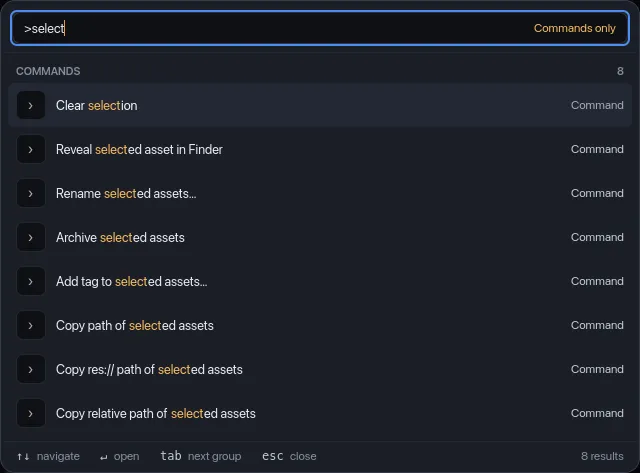
Section titled “Prefixes”Start the query with a prefix to search one group only. The hint at the right of the box changes to say which:
| Type | Searches | Hint |
|---|---|---|
> |
Commands only, e.g. >sort |
Commands only |
# |
Tags only (up to 30), e.g. #props; # alone lists all tags |
Tags only |
Keyboard
Section titled “Keyboard”| Key | Action |
|---|---|
| ↑ ↓ | Move through the results (group headers are skipped). |
| Tab / Shift+Tab | Jump to the first row of the next / previous group. |
| Enter | Run the highlighted row (see below). |
| Cmd/Ctrl+Enter | On an asset: reveal its file in Finder, Explorer or your file manager instead. |
| Esc | Close the palette. Clicking outside it does the same. |
You can also point at a row to highlight it and click to run it.
What a row does
Section titled “What a row does”- Command: closes the palette and runs the command.
- Asset: clears every filter and the search, selects the asset in the grid, scrolls to it and shows it in the inspector.
- Tag: filters the grid to that tag (replacing any other tag filter, keeping the rest).
Opening the palette closes Quick Look if it’s open.
All commands
Section titled “All commands”Commands that act on “selected assets” use the grid’s current selection. With nothing selected they do nothing, or say in the status bar that you need to select something first.
Library and app
| Command | What it does |
|---|---|
| Add to library… | Opens the Add to library dialog (Cmd/Ctrl+O). |
| Scan all roots | Rescans every library folder. See Library and scanning. |
| Open settings | Opens Settings (Cmd/Ctrl+,). |
| Focus search | Puts the cursor in the search box (Cmd/Ctrl+F). |
| Show job history | Opens the Job History dialog. |
| Undo … | Undoes the last destructive or batch action, e.g. “Undo archiving of 3 assets” (Cmd/Ctrl+Z). Only listed when there’s something to undo. See Undo. |
| About Salaryman Asset Manager | Opens Settings on the About tab, with the version you’re running. |
| Open documentation | Opens this user guide in your web browser. |
| Reset window size | Forgets the window’s saved size and position and puts it back at its first-launch size, centered on the screen. |
Grid view
| Command | What it does |
|---|---|
| Sort by Name A–Z, Sort by Name Z–A, Sort by Recently added, Sort by Modified, Sort by Size, Sort by Type | Sorts the grid. See Sort. |
| Switch to grid view, Switch to list view | Changes how the grid shows assets. |
| Larger thumbnails, Smaller thumbnails | Changes the thumbnail size in grid view by one step. |
Selected assets
| Command | What it does |
|---|---|
| Quick look | Opens Quick Look on the selected asset. |
| Rename selected assets… | Opens Bulk rename for the selection (F2). |
| Add tag to selected assets… | Opens the tag picker for the selection. |
| Archive selected assets | Archives the selection, or unarchives it if every selected asset is already archived. |
| Clear selection | Deselects everything (Esc in the grid). |
| Reveal selected asset in Finder | Shows the file in Finder (Explorer on Windows, your file manager on Linux; the command is named after it) (Cmd/Ctrl+R). |
| Copy path of selected assets | Copies the full paths, one per line. |
| Copy relative path of selected assets | Copies each path relative to its library folder, with / separators. |
| Copy res:// path of selected assets | Copies res:// paths, for assets inside a Godot project. |
Collections and health
| Command | What it does |
|---|---|
| Export current collection… | Opens Export for the collection you have open in the sidebar. |
| Find duplicates | Opens the duplicates review. |
| Open license fixer | Opens the License fixer. |
| Show missing files | Filters the grid to missing files. |
See also
Section titled “See also”- Keyboard shortcuts: every shortcut on one page.
- Search and filters: the search box and filter chips.