
Bulk-rename a selection, and undo it
Packs name their files however they like. In this tutorial you give a pack’s sound effects one naming scheme (a prefix, a number and the old name) in one go, check the result, and then undo it, so you know you can try things safely. Along the way you see what undo covers and what it doesn’t.
You need: the app with a library that has a few files you want to rename. The screenshots use the seven sounds in “Retro Sound Effects”.
Time: about five minutes.
1. Select the files
Section titled “1. Select the files”Click Retro Sound Effects under Folders in the sidebar and Audio under Types, so the grid shows just the sounds. Click the first one, then Shift-click the last to select them all (Cmd/Ctrl-click adds or removes single assets).
With two or more assets selected, the selection bar appears at the bottom of the grid and the right-hand panel sums up the selection.
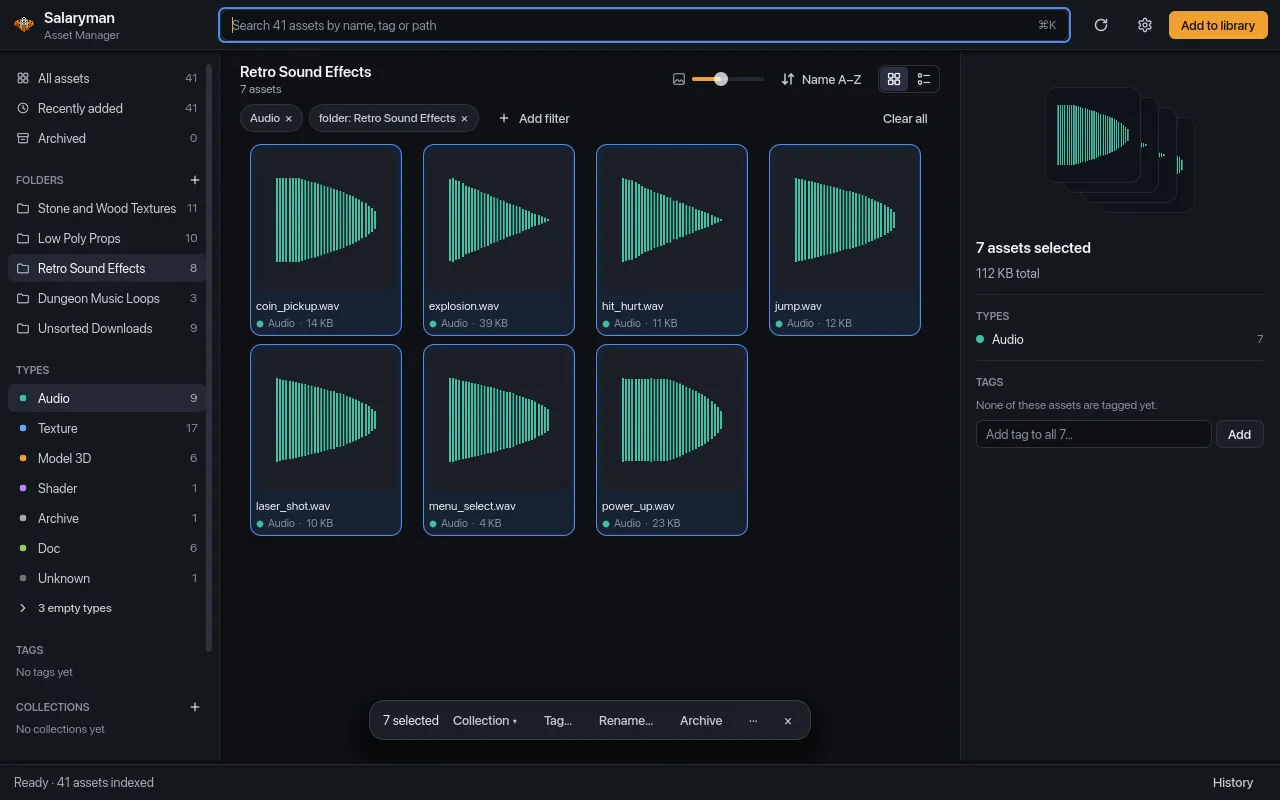
Rename only ever touches the selected assets, never the rest of the folder or of your search results.
2. Open the rename window
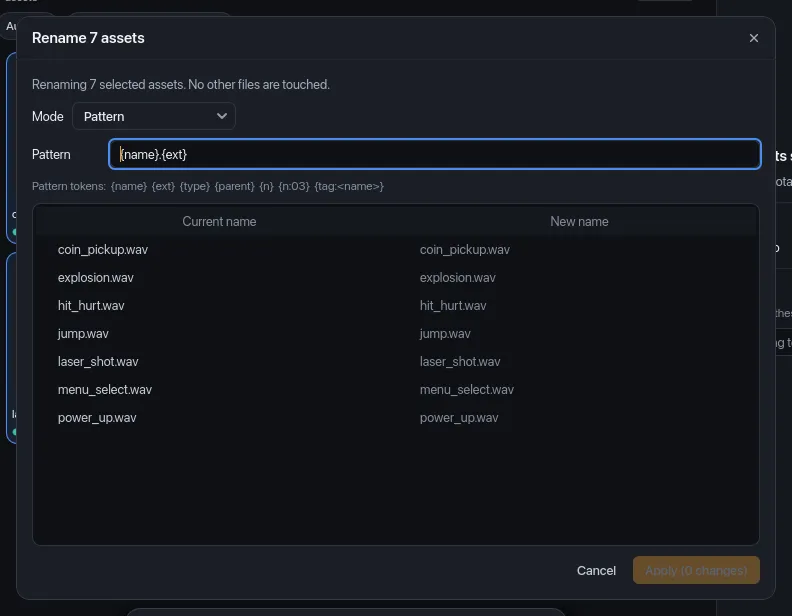
Section titled “2. Open the rename window”Press F2, or click Rename… in the selection bar. You can also right-click the selection and choose Rename 7 assets…, or run Rename selected assets… from the command palette (Cmd/Ctrl+K). F2 and the right-click menu work for a single asset too.
The window is titled Rename 7 assets. It opens in Pattern mode with
the pattern {name}.{ext}, which keeps every name as it is, so the preview
shows no changes yet and Apply (0 changes) is turned off.
3. Write a pattern
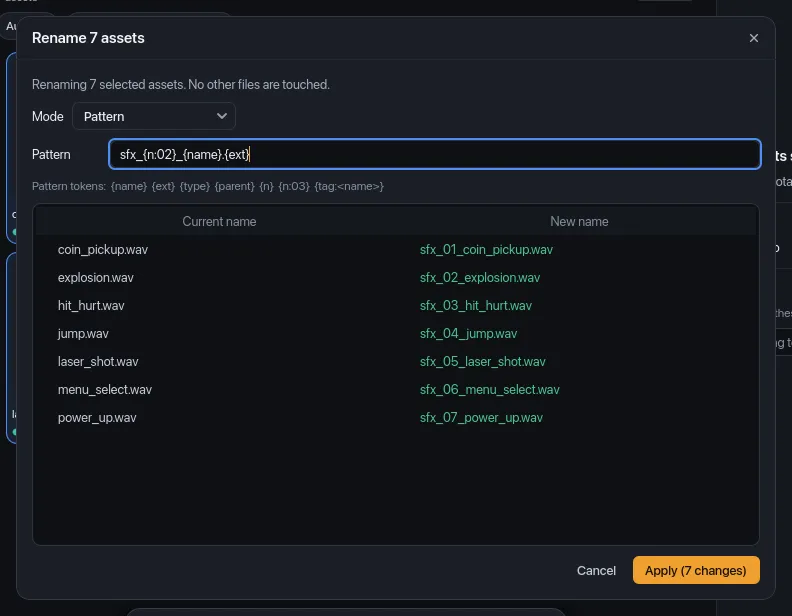
Section titled “3. Write a pattern”Replace the pattern with:
sfx_{n:02}_{name}.{ext}The tokens in braces are filled in for each file: {n:02} is a counter in
the order of the list, padded to two digits; {name} is the current name
without its extension; {ext} is the extension. Everything else is copied as
typed. The preview updates as you type: new names that differ from the
current one are green, and the button counts them.
Other tokens: {type} (the asset type in capitals, such as AUDIO),
{parent} (the folder the file is in) and {tag:<name>} (the tag’s name if
the asset has that tag, otherwise nothing).
Bulk actions and undo
lists them all.
Before you apply, check two things in the preview:
- Keep
.{ext}at the end. Without it the files lose their extension. - Every new name is different. The preview doesn’t warn when two files
would get the same name (for example with a pattern without
{n}). Only the first one is renamed; the others count as errors and keep their old names. The same goes for a name that another file in the folder already has.
4. Apply
Section titled “4. Apply”Click Apply (7 changes). The window closes, each file is renamed in its own folder, and the grid shows the new names. The status bar says how it went: “Renamed 7 files (0 skipped, 0 errors)”. Files whose name wouldn’t change are skipped.
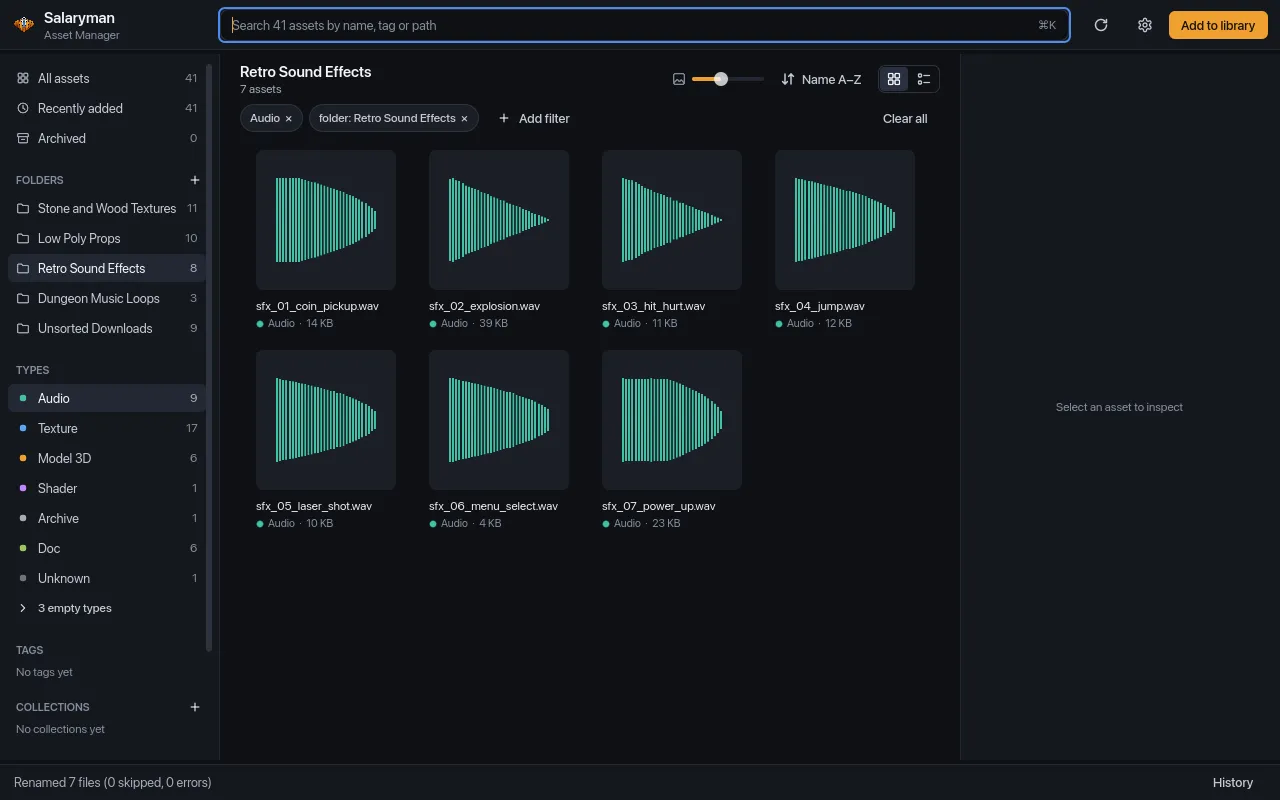
Each asset keeps everything else: tags, collections, pack and thumbnail. If a file couldn’t be renamed (it’s read-only, or the name has characters your system doesn’t allow), it counts as an error and keeps its old name.
5. Check what undo will do
Section titled “5. Check what undo will do”Press Cmd/Ctrl+K and type undo. The palette shows a
command named after the operation that undo would reverse next, here
Undo rename of 7 files. When there’s nothing to undo, the command isn’t
there.
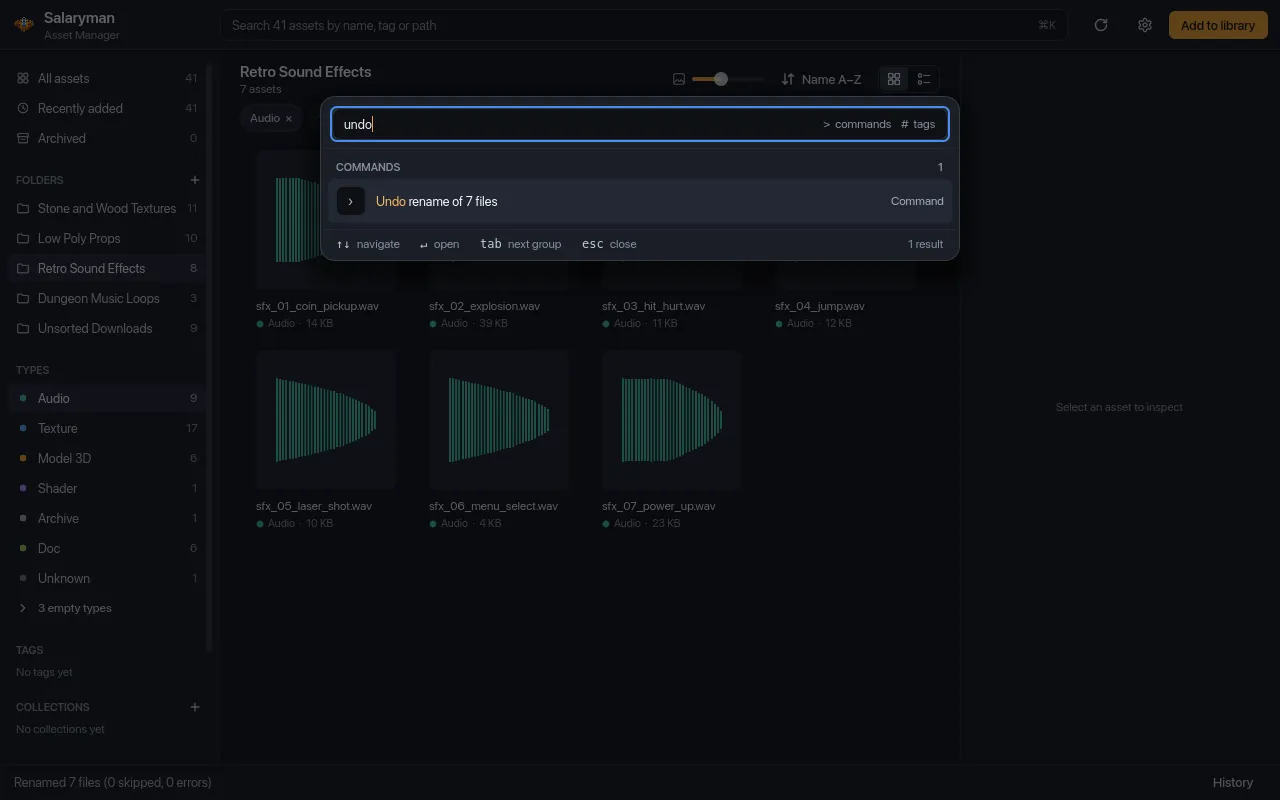
It’s worth a look before you undo, because not everything you do is undoable (see below): undo always reverses the newest operation that is, which isn’t necessarily the last thing you did.
6. Undo the rename
Section titled “6. Undo the rename”Press Esc to close the palette (or press Enter to run the command), then press Cmd/Ctrl+Z. The files get their old names back, on disk and in the grid, and a notice at the bottom of the window says Undid rename of 7 files.
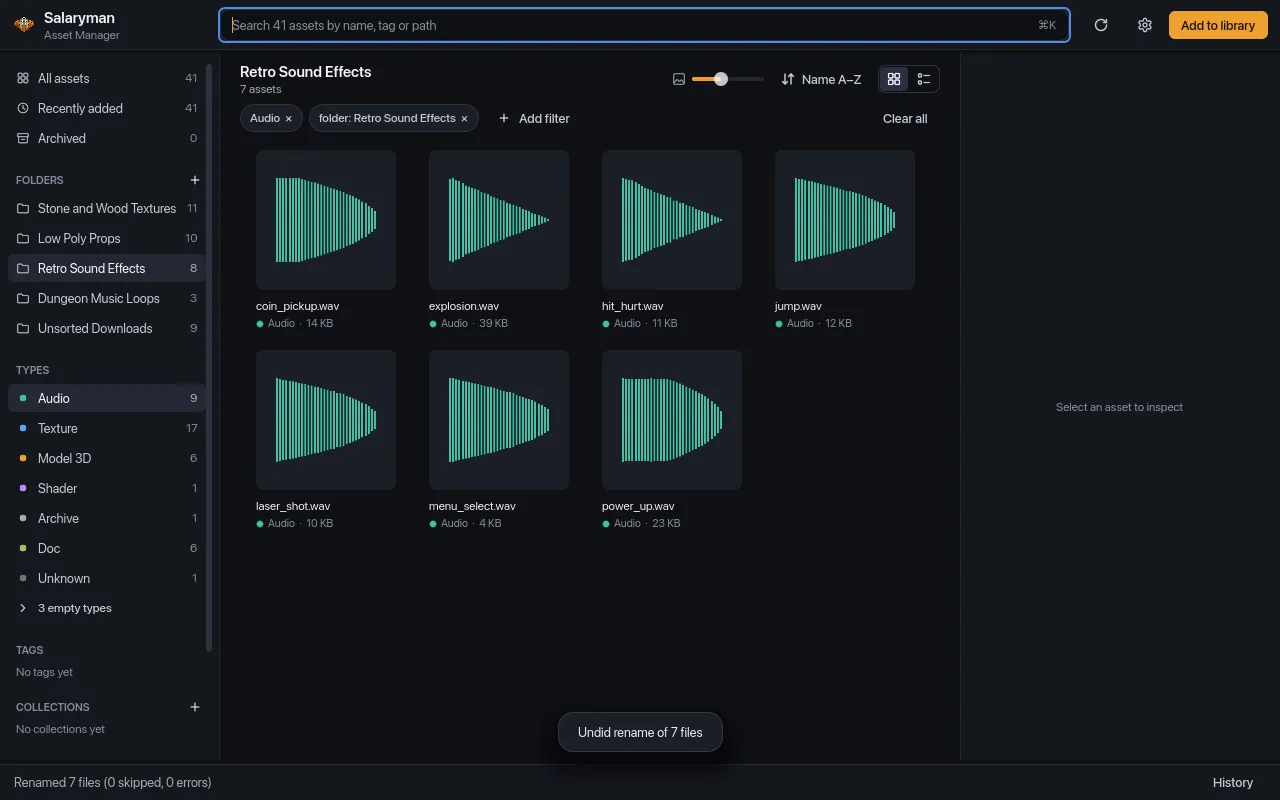
A file that was moved or renamed again since, or whose old name is now taken by another file, is left alone, and the notice adds how many were skipped (“· 1 skipped (moved or renamed since)”).
Cmd/Ctrl+Z doesn’t undo the app while you’re typing in a text field (the search box, a tag field): there it undoes your typing. If nothing seems to happen, click an asset in the grid (that takes the focus out of the field) and press it again. There’s no redo: to apply the rename again, select the files and run it again.
Regex find/replace instead of a pattern
Section titled “Regex find/replace instead of a pattern”For changes inside names, switch Mode to Regex find/replace. Find
is a regular expression matched against the whole name, extension included,
and every match is replaced with Replace. Here, Find _ and Replace -
turn coin_pickup.wav into coin-pickup.wav; names with no underscore stay
as they are (dimmed) and aren’t counted.
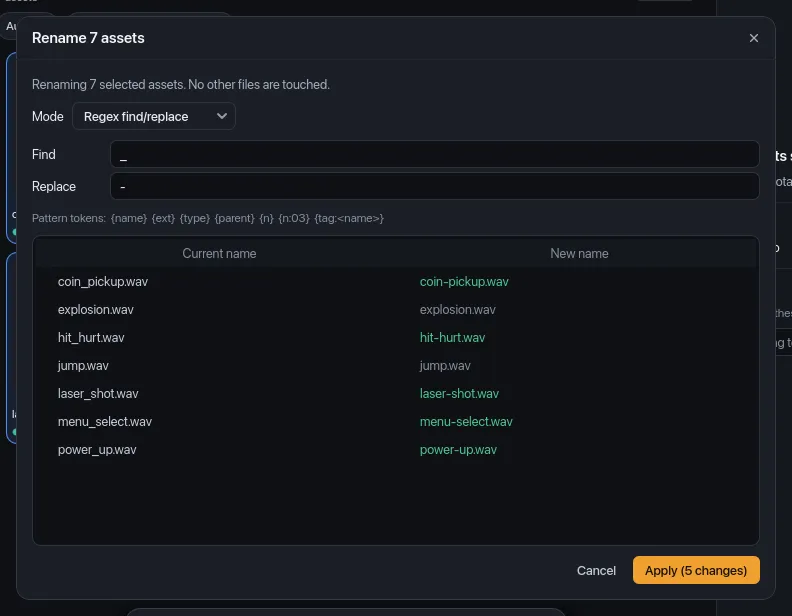
In Replace, $1, $2, … insert what the groups in Find matched. The
pattern tokens such as {n} aren’t filled in in this mode, even though the
token list stays on screen. If the expression isn’t valid, the preview just
shows no changes.
What undo covers
Section titled “What undo covers”Undo keeps the last 50 undoable operations of this session; quitting the app clears it, and it waits while a scan is running (“Wait for the scan to finish, then undo.”). It covers the operations that change or drop things in bulk:
- bulk renames (the files are renamed back),
- archiving and unarchiving,
- removing a tag from assets,
- Remove from library… and removing a library folder (assets come back with their tags and collection memberships).
Resolving duplicates is recorded but can’t be reversed: the files are in the Trash, and Cmd/Ctrl+Z says so instead of undoing something older (see Clean up duplicates and missing files). Other changes, such as adding tags, adding assets to collections, deleting a collection or Locate… for a missing file, aren’t recorded at all: undo skips over them to the newest operation in the list above.
What you did
Section titled “What you did”You renamed a set of files with a pattern after checking the preview, confirmed the result on disk, looked up what undo would reverse, and undid the rename. You also know how regex mode works and which operations you can take back.
For more detail:
- Bulk actions and undo: every rename token, regex details, and the full list of what can and can’t be undone.
- Grid and selection: all the ways to select assets.
- Command palette: running commands such as Rename selected assets… and Undo … from the keyboard.
- Keyboard shortcuts.