
Troubleshooting
The app won’t open
Section titled “The app won’t open”macOS says it “can’t be opened” or “Apple could not verify” it, or Windows says “Windows protected your PC”. The builds aren’t signed with a paid certificate, so the OS asks you to confirm the first time you open each new version. First launch shows how.
Windows: nothing happens, or an error about a missing file. Keep every
file from the zip together in one folder: SalarymanAssetManager.exe needs
the .pck file and the SQLite .dll next to it.
Linux: “Permission denied”. Make the program executable first:
chmod +x SalarymanAssetManager.x86_64, then run it again.
“Your library couldn’t be opened”
Section titled ““Your library couldn’t be opened””When the app can’t open or upgrade your library, it shows this screen instead of an empty library, so a broken library never looks like a lost one:
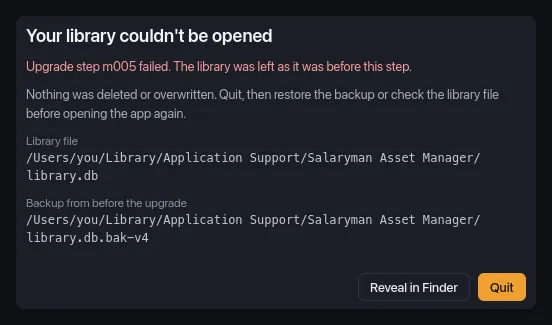
It says what went wrong (in red), where the Library file is and, if the app made one, where the Backup from before the upgrade is. Reveal in Finder (Explorer, file manager) shows the backup, or the library file when there’s no backup. Quit closes the app. Nothing has been deleted or overwritten.
What to do depends on the message:
| Message | What it means | Fix |
|---|---|---|
| “This library was created by a newer version of the app (schema v6; this version knows v5).” | You opened the library with an older version of the app. | Install the latest version (Install). |
| “Upgrade step m005 failed. …”, “Couldn’t record upgrade step …”, “Couldn’t save upgrade step …” or “The integrity check found problems: …” | Upgrading the library to the new version failed. | Restore the backup and report the problem. |
| “The library file can’t be read. It may be damaged or not a library database.” | library.db isn’t a library the app recognizes. |
Restore a backup, or start over. |
| “SQLite couldn’t open the file…” | The app can’t open library.db at all. |
Check the disk isn’t full and that you can read and write the data folder, then open the app again. |
| “Couldn’t back up the library before upgrading…” | The app wouldn’t upgrade without a backup, and couldn’t write one. Your library is unchanged. | Free some disk space or fix the folder’s permissions, then open the app again. |
| “The SQLite extension isn’t loaded…” | Part of the app is missing. | Reinstall the app. On Windows, keep the .dll next to the .exe. |
Restore a backup
Section titled “Restore a backup”Before the app upgrades a library to a new format, it copies library.db to
library.db.bak-v<N> in the same folder, where <N> is the format version
before the upgrade. It keeps the newest 3.
- Click Quit.
- Click Reveal in Finder before quitting, or open the data folder yourself.
- Rename
library.dbtolibrary.db.broken, to keep it in case you need it. Rename anylibrary.db-journal,library.db-walorlibrary.db-shmfile next to it the same way (add.broken). - Make a copy of the backup the error screen named (for example
library.db.bak-v4) and rename the copy tolibrary.db. Keep the original backup. - Open the app.
The library is back as it was just before the upgrade: anything you changed
after that is in library.db.broken but not in the restored library.
If the same version of the app fails to upgrade the restored backup again, it shows the same screen. Install the previous version of the app to keep working with the backup, and report the problem with the message from the screen.
Thumbnails are missing or look wrong
Section titled “Thumbnails are missing or look wrong”- A gray placeholder for a while: thumbnails are made in the background as you scroll, so large libraries take a moment.
- A placeholder that stays: some types have no preview (fonts, shaders,
video, documents); see Supported formats.
.blendand.daemodels need Blender (below). A file that’s damaged or missing keeps its placeholder too. - An outdated or broken thumbnail: quit the app, delete the
cache/thumbs/folder in the data folder, and open the app again. Every thumbnail is made again from the files.
Blender isn’t found
Section titled “Blender isn’t found”Blender is only needed for .blend and .dae previews. Open
Settings → External tools and read the status line under
Blender path: it says whether the app found a working Blender and which
one. If it didn’t, set the path to the Blender program or click Browse….
Settings lists every status
message, and Blender previews walks
through the setup.
A .7z or .rar archive shows no contents
Section titled “A .7z or .rar archive shows no contents”The inspector says “Archive not yet indexed — rescan to build file list”.
The app lists the files inside .7z and .rar archives with the 7z and
unrar command-line tools, which you install separately; .zip archives
need nothing. (The contents of .tar and .gz files aren’t listed.) The app
reads the list when it scans the folder.
- Install
7z(from 7-Zip or p7zip) orunrar. - Make sure the command works from a terminal:
7zorunraron its own should print its help. - Rescan the folder: the refresh button at the top of the window, or Rescan folder in Settings → Folders + packs.
The app finds these tools on the system PATH it was started with. On
macOS, an app opened from the Dock or Finder doesn’t see folders your
terminal adds to PATH (such as Homebrew’s), so a tool that works in Terminal
may still not be found. If that happens, extract the archive and repack it as
a .zip, which the app reads on its own.
Files show as missing after I moved a folder
Section titled “Files show as missing after I moved a folder”The library remembers each folder by its full path. After you move or rename a library folder (or unplug the drive it’s on), the next scan marks its assets as missing; they appear under Health → Missing files. Nothing is lost:
- Move it back (or plug the drive back in) and rescan. The assets are found again with their tags and collections.
- For a few files, select each one in Health → Missing files and use Locate… to point it at its new location. It keeps its tags and collections.
- To use the new location from now on, add the folder again with Add to library…, then remove the old entry. The new assets start without the old tags and collections.
See Health views.
New files don’t show up
Section titled “New files don’t show up”The library updates when it scans. Click the refresh button at the top of the window to rescan every folder. To have it happen automatically while the app is open, turn on Settings → General → Enable file watching; it picks up files added or removed directly inside a library folder, but may miss changes deep inside subfolders until you rescan. Folders whose On switch is off in Settings → Folders + packs aren’t scanned.
Duplicates don’t show up
Section titled “Duplicates don’t show up”Duplicates are found by comparing file contents, which the app computes in the background after each scan finishes, without a progress bar. Give it a moment after “Scan complete” (longer for large or many new files); the Duplicates count updates on its own when it’s done. Archived and missing files are never counted.
Cmd/Ctrl+Z doesn’t undo
Section titled “Cmd/Ctrl+Z doesn’t undo”- If a text field has focus (search, a tag field), it undoes your typing. Click the grid first.
- While a scan runs, it says “Wait for the scan to finish, then undo.”
- The undo history only covers the current session; it’s empty after a restart.
- Some actions can’t be undone. See Bulk actions and undo.
The window is too big, too small or off screen
Section titled “The window is too big, too small or off screen”The app remembers the window’s size and position, and the first time it opens it sizes itself to the screen. If the window comes up in an awkward place, for example after you unplugged a monitor, open the command palette (Cmd/Ctrl+K) and run Reset window size. It forgets the saved size and position and puts the window back at its first-launch size, centered.
Report a problem
Section titled “Report a problem”- Open Settings → About (or run About Salaryman Asset Manager in the command palette) and click Copy version info. It copies one line with the app version, the Godot version and your OS.
- Paste it into your report, with what you did, what you expected and what happened instead. Include the exact text of any error message.
- If the app reported an error, the files in
logs/in the data folder can help too.
Don’t attach your library.db unless asked: it lists the paths and names of
everything in your library.