
Quick Look
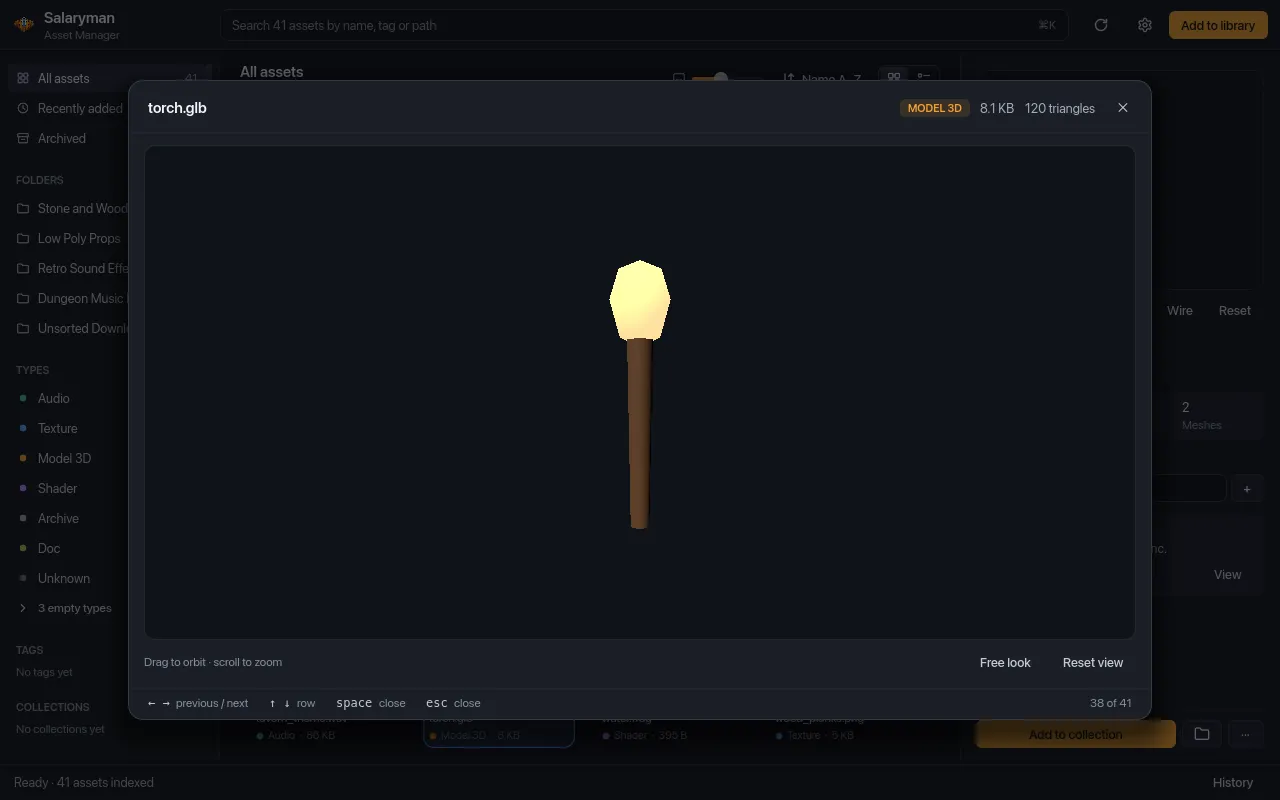
Quick Look shows the selected asset big, over the rest of the window, so you can flip through textures, models and sounds without leaving the keyboard.
Open and close
Section titled “Open and close”Select an asset in the grid and press Space. You can also pick Quick look in an asset’s right-click menu or in the command palette.
Space only opens Quick Look while the cursor isn’t in a text field: after typing a search, click an asset first.
To close it, press Esc or Space (except on a sound, see below), click ✕ in its header, or click anywhere outside the preview. Opening the command palette also closes it.
Step through assets
Section titled “Step through assets”While Quick Look is open, the arrow keys move the grid selection and Quick Look follows:
| Key | Goes to |
|---|---|
| ← / → | The previous / next asset |
| ↑ / ↓ | The asset a row up / down in the grid |
The footer shows where you are (“38 of 41”) and a reminder of the keys. The inspector behind it updates too, so when you close Quick Look the asset you stopped on is selected.
What it shows
Section titled “What it shows”The header has the file name, the type badge, the file size and one key detail: dimensions for a texture, duration for a sound, the triangle count for a model, the number of files for an archive.
| Type | Preview |
|---|---|
| Texture | The image, fitted to the window. RGB, R, G, B and A show all or one channel (A is greyed out without alpha); Tile 3×3 checks that it repeats. |
| 3D model | The model, ready to orbit (drag) and zoom (scroll). Free look switches to flying with W A S D and Q / E, as in the inspector; Reset view reframes it. |
| Sound | The waveform and player. The sound starts playing as soon as it’s open, and again each time you step to another sound. |
| Archive | The list of files inside it. |
| Anything else | A short message, such as “No preview for Shader files”. |
Files that are missing or on a drive that isn’t connected show the same messages as in the inspector.
Sounds
Section titled “Sounds”On a sound, Space plays and pauses instead of closing Quick Look (the footer hint changes from “close” to “play / pause”); press Esc to close. Clicking the waveform, Loop and Volume work as in the inspector. Quick Look takes over playback: a sound playing in the inspector is paused when it opens.
See also
Section titled “See also”- Inspector and previews: the same previews, with more controls.
- Keyboard shortcuts.