
Bulk actions and undo
These actions work on several assets at once. Most of them can be undone with Cmd/Ctrl+Z until you quit the app.
Bulk rename
Section titled “Bulk rename”Rename renames the files on disk, not just their names in the library. It only ever touches the assets you selected.
To open it, select one or more assets in the grid (see Grid and selection), then:
- press F2,
- click Rename… in the selection bar,
- right-click the selection and choose Rename… (Rename N assets… for several), or
- run Rename selected assets… in the command palette.
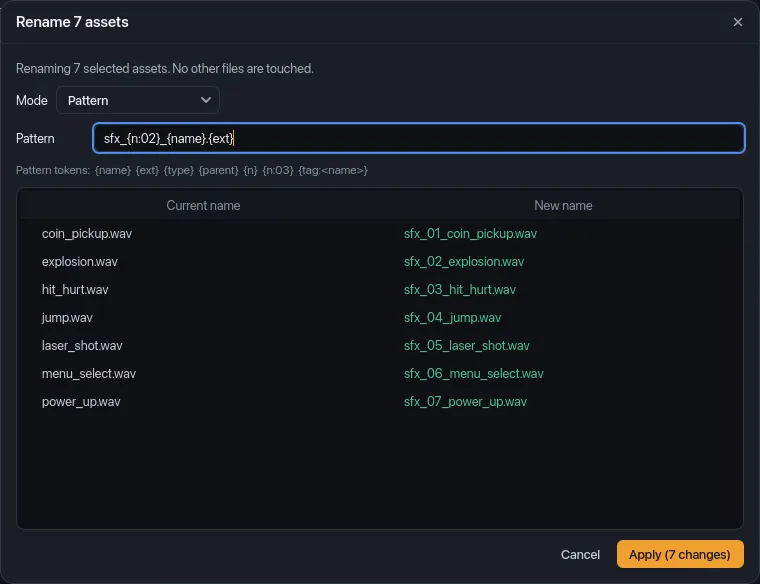
The window is titled Rename N assets and says “Renaming N selected assets. No other files are touched.”
Pattern mode
Section titled “Pattern mode”Mode → Pattern builds every new name from a template. It starts as
{name}.{ext}, which changes nothing. These tokens are replaced for each
file:
| Token | Becomes | Example for textures/wood_planks.png |
|---|---|---|
{name} |
The file name without its extension | wood_planks |
{ext} |
The extension, without the dot | png |
{type} |
The asset type, in capitals | TEXTURE |
{parent} |
The name of the folder the file is in (empty at the top of a library folder) | textures |
{n} |
A number counting up from 1, in the order shown in the preview | 1 |
{n:03} |
The same number padded with zeros to that many digits | 001 |
{tag:<name>} |
<name> if the asset has that tag, otherwise nothing |
{tag:hero} → hero or nothing |
Anything else in the pattern is copied as is. For example,
sfx_{n:02}_{name}.{ext} turns jump.wav into sfx_04_jump.wav when it’s
fourth in the list.
Regex mode
Section titled “Regex mode”Mode → Regex find/replace shows Find and Replace fields instead.
Find is a regular expression matched against the whole file name,
extension included, and every match is replaced. In Replace, $1, $2, …
insert what the groups in Find matched. For example, Find ^(.*)_old\.
and Replace $1. turn rock_old.png into rock.png. If the expression isn’t
valid, the preview simply shows no changes.
Preview and apply
Section titled “Preview and apply”The table shows every selected asset with its Current name and its New name, updated as you type. Names that will change are green; names that stay the same (or would be empty) are dimmed and skipped. The button reads Apply (N changes) and is turned off when nothing would change.
Click Apply to rename. Each file is renamed in place, in its own folder, and its asset keeps its tags, collections, pack and thumbnail. The status bar then says, for example, “Renamed 7 files (0 skipped, 0 errors)”.
A file is not renamed, and counts as an error, when:
- another file already has the new name in that folder, including one renamed
earlier in the same batch (so give every file a different name, for example
with
{n}), - the operating system refuses the rename (permissions, a read-only drive, characters it doesn’t allow).
The preview doesn’t warn about these, so check the error count in the status bar.
Renaming a file from an imported zip renames the extracted copy in the app’s data folder, not the zip.
Archive and unarchive
Section titled “Archive and unarchive”Archiving hides assets you don’t want to see without removing them. Archived assets disappear from All assets, search, every folder, type, tag and collection view, the Health counts and duplicate detection, and export skips them unless you tick Include N archived assets. They keep their tags, collections and pack, and rescans leave them archived.
To archive, select assets and:
- click Archive in the selection bar,
- right-click and choose Archive (Archive N assets),
- choose Archive in the inspector’s ··· (More actions) menu, or
- run Archive selected assets in the command palette.
The sidebar’s Archived row (at the top, under Recently added) shows them, with a count. There, the same buttons read Unarchive. The status bar confirms with “Archived 3 assets” or “Unarchived 3 assets”. Both are undoable.
Remove from library
Section titled “Remove from library”Remove from library… drops assets from the catalog: their tags, collection memberships and metadata go with them. Files on disk are never touched. The confirmation says how many tags and collection memberships are lost and that Cmd/Ctrl+Z undoes it until you quit.
It’s in the selection bar of the Missing files view, where the files are already gone. A file that is still on disk would come back, without its tags, at the next scan of its folder; to hide one, archive it instead.
Remove a folder
Section titled “Remove a folder”Removing a library folder removes every asset in it from the library, with their tags and collection memberships. Files on disk are never deleted.
- In the sidebar, hover the folder, click its ··· (More) button and choose Remove folder….
- In Settings → Folders + packs, open the folder’s ··· menu and choose Remove from library…. See Settings.
The confirmation names the folder, the number of assets, the tags and collection memberships they lose, and that Cmd/Ctrl+Z undoes it until you quit. If the folder had pack info, the pack is kept and listed under Packs not linked to a folder in Settings.
For a pack you imported from a zip, the extracted files stay in the app’s data folder (see Where your data lives).
Press Cmd/Ctrl+Z to undo the most recent library action. A message at the bottom of the window says what happened, for example “Undid rename of 7 files”. Press it again to undo the one before.
The command palette also lists the next undo as a command named after it, such as Undo archiving of 3 assets or Undo removal of folder “Low Poly Props”. It’s hidden when there’s nothing to undo.
What can be undone
Section titled “What can be undone”| Action | Undo puts back |
|---|---|
| Rename | The old file names, on disk and in the library |
| Archive / unarchive | The previous archived state |
| Removing a tag from assets (in the inspector or the multi-selection panel) | The tag on the assets that had it |
| Remove from library | The assets, their tags, collection memberships and metadata |
| Remove folder | The folder, its assets, their tags and collection memberships |
Undo skips what has changed since and says so, for example “Undid rename of 7 files · 1 skipped (moved or renamed since)”. A file isn’t renamed back if it has been moved or renamed again, or if something else now has its old name. A tag isn’t put back if the tag was deleted.
Limits
Section titled “Limits”- One session. The undo history lives in memory: it’s cleared when you quit and when the library is reopened. Undo doesn’t survive a restart.
- 50 steps. Only the 50 most recent actions are kept.
- No redo. Shift+Cmd/Ctrl+Z does nothing.
- Not during a scan. While a scan runs, undo says “Wait for the scan to finish, then undo.”
- Text fields keep their own undo. While you’re typing in the search field, a tag field or any other text box, Cmd/Ctrl+Z undoes your typing. Click the grid first to undo a library action.
- With nothing left to undo, it says “Nothing to undo.”
What can’t be undone
Section titled “What can’t be undone”Resolving duplicates moves files to the Trash, which the app can’t reverse. Their confirmations say “This can’t be undone in the app”. Pressing Cmd/Ctrl+Z afterwards explains instead of undoing something older:
- after Delete others…: “Can’t undo moving 2 duplicates to the Trash. Restore them from the Trash to undo.”
- after Symlink others: “Can’t undo replacing 2 duplicates with links. The originals are in the Trash.”
Press it again to reach the actions before that.
These aren’t recorded at all, so Cmd/Ctrl+Z skips over them: adding tags or assets to collections, deleting a collection, changes made in the License fixer, editing or removing pack info, auto-tag rules and settings.
See also
Section titled “See also”- Bulk rename and undo, a step-by-step tutorial
- Keyboard shortcuts