
Preview .blend and .dae files by setting up Blender
The app previews most 3D formats on its own: glTF (.gltf, .glb), FBX,
OBJ, STL and PLY. Blender’s own .blend files and COLLADA .dae files are
different: to show them, the app has Blender
convert each one to glTF in the background. In this tutorial you check that
the app finds Blender, tell it where Blender is if it doesn’t, and look at a
.blend model in the inspector.
You need:
- Blender, installed from blender.org/download
(free). Any recent version opens
.blendfiles. For.daefiles you need Blender 4.5 or earlier: Blender 5 can no longer import COLLADA (see Troubleshooting). - A
.blendor.daefile in your library. The screenshots uselantern.blend, a small model in the “Low Poly Props” folder.
Time: about five minutes, plus the Blender download.
1. Check what the app found
Section titled “1. Check what the app found”Open Settings (the gear at the top right) and click External tools. With Blender path left empty (“Auto-detect (leave blank)”), the app looks in two places:
/Applications/Blender.appon macOS,- a
blendercommand on yourPATH, on every system.
The line under the field says what it found. A green “Found Blender 5.1.2 at
/Applications/Blender.app.” means you’re done; go to
step 3. It runs blender --version to check, so
it can take a moment (“Checking for Blender…”).
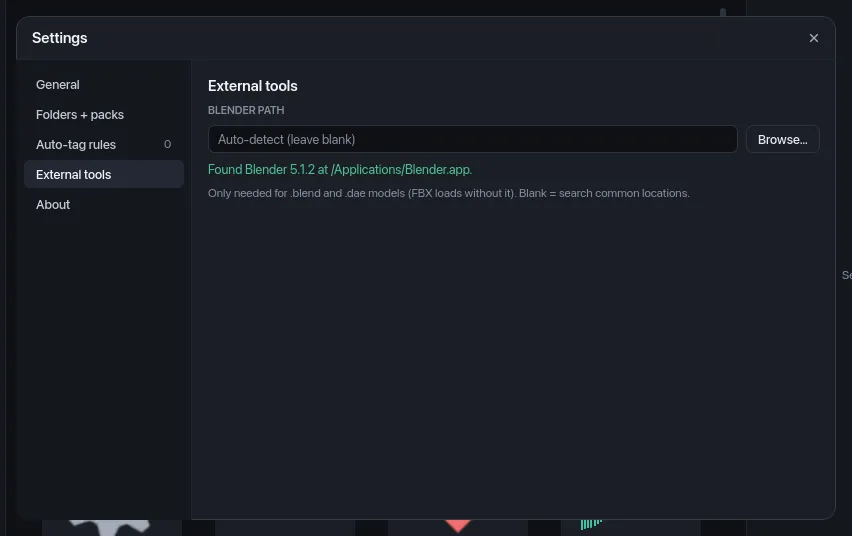
If it says “Blender wasn’t found. It’s only needed to preview .blend and
.dae models.”, continue with step 2. That’s normal on Windows, where the
Blender installer doesn’t add Blender to the PATH, and on Linux when you
unpacked Blender’s download instead of installing a package.
2. Tell the app where Blender is
Section titled “2. Tell the app where Blender is”Type the path to the Blender program in Blender path and press Enter (or click elsewhere), or click Browse… and pick it in the Locate the Blender executable window. Point it at the program itself, not at its folder:
| System | Typical path |
|---|---|
| macOS | /Applications/Blender.app/Contents/MacOS/Blender |
| Windows | C:\Program Files\Blender Foundation\Blender 4.5\blender.exe (the version number is part of the folder name) |
| Linux | The blender file in the folder you unpacked, for example ~/blender-4.5.3-linux-x64/blender |
The status line checks the path straight away. “Using Blender 5.1.2 at /Applications/Blender.app.” means it works.
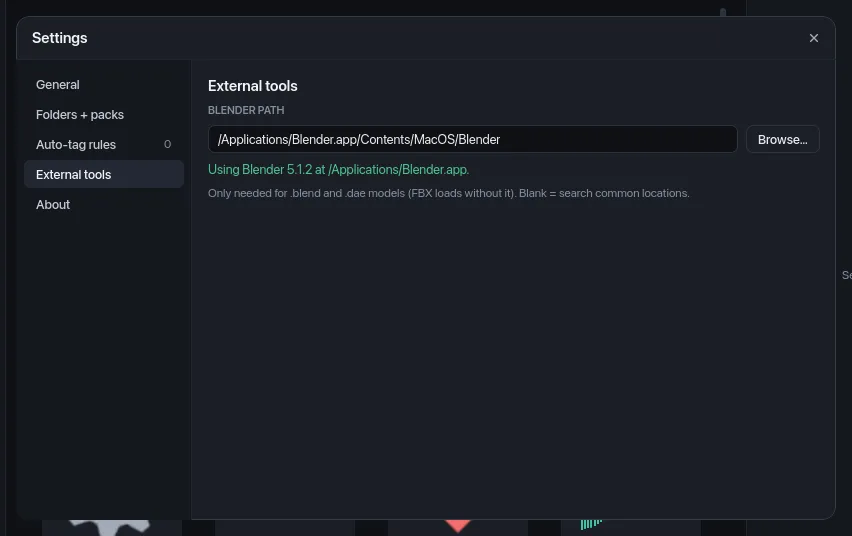
If the path doesn’t work, the line turns red: “No working Blender at that path. Check it points at the Blender executable.” When another Blender was auto-detected, it says so and uses that one instead (“… Using the auto-detected Blender … instead.”). Clear the field to go back to auto-detect. Your choice is saved with the app’s settings.
3. Preview a .blend model
Section titled “3. Preview a .blend model”Close Settings and click a .blend or .dae model in the grid (filter by
Model 3D under Types to find them). The first time, the inspector’s
preview says Converting BLEND… (or Converting DAE…) while Blender
works in the background, without opening a window. This takes a few seconds,
mostly Blender starting up. Then the model appears:
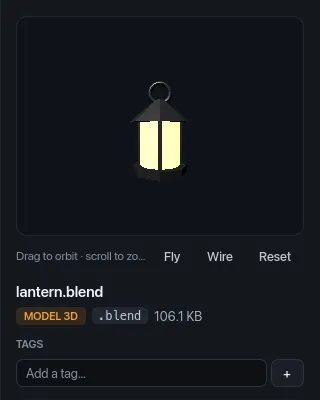
It works like any other model: drag to orbit, scroll to zoom, Fly for
free-look, Wire for wireframe and Reset to put the camera back. Quick
Look (Space) shows it too, and the grid thumbnail fills in once the
file is converted. The Vertices and Triangles tiles that other
models get under the name don’t appear for .blend and .dae files.
What gets converted, and where it’s kept
Section titled “What gets converted, and where it’s kept”- Only
.blendand.daefiles need Blender. FBX files are read by the app itself; Blender is only tried for an FBX the app can’t read. - Each file is converted once. The result, a
.glbfile, goes incache/converted/in the app’s data folder, so the preview is instant next time, even after a restart. - A file is converted again when it changes on disk or moves to another path.
- Blender runs at most two conversions at a time. Thumbnails wait their turn; the model you’re looking at in the inspector or Quick Look goes first.
- If a model’s textures aren’t where the file says they are (common in packs
made on someone else’s computer), the conversion looks for images with
similar names next to the model and in nearby folders called
textures,texture,mapsortex. - You can delete
cache/converted/to free space. Files are converted again when you next look at them.
Troubleshooting
Section titled “Troubleshooting”| What you see | What to do |
|---|---|
| “No preview for .blend — set a Blender path in Settings” | The app has no working Blender. Do steps 1 and 2. |
| “Can’t preview this DAE.” followed by “Calling operator “bpy.ops.wm.collada_import” error, could not be found.” | Your Blender is version 5 or later, which can’t import .dae files. Install Blender 4.5 LTS from blender.org/download/lts (it can sit next to your current Blender) and set Blender path to it. |
| “Can’t preview this BLEND.” (or DAE) followed by another reason, or “Blender couldn’t convert it.” | Blender couldn’t open or export the file. Open it in Blender to see what’s wrong. The app doesn’t retry a failed file until it changes on disk, you change Blender path, or you restart the app. |
| “Can’t preview this FBX. It’s an ASCII FBX file, which Blender can’t import. Re-export it as binary FBX.” | Re-export the model as binary FBX (or glTF) in the tool that made it. |
| “Converted this BLEND, but the result couldn’t be loaded.” | Blender produced a file the app can’t read. Delete cache/converted/ and look at the model again; if it keeps happening, export it to glTF from Blender yourself. |
| The model shows, but without its textures | The textures it refers to aren’t on disk under a similar name near the model. Put them in a textures folder next to it, then touch or re-save the model so it’s converted again. |
| It stays on “Converting…” for a long time | Large files take a while, and thumbnails for many .blend files queue up. Give it a minute; the model you’re looking at is converted first. |
More fixes are on the Troubleshooting page.
What you did
Section titled “What you did”You checked that the app finds Blender, set its path where needed, and
previewed a .blend model. You know where converted models are cached and
what to do when a conversion fails.
For more detail:
- Settings → External tools: every status message.
- Inspector and previews: the 3D preview controls.
- Supported formats: which formats preview with and without Blender.
- Where your data lives: the cache folders.