
Grid and selection
The grid in the middle of the window shows the assets that match the current search and filters. Above it, the toolbar has the view’s title and asset count on the left, and the sort, view and size controls on the right.
The sort button shows the current order. Click it to pick another:
| Order | Sorts by |
|---|---|
| Name A–Z (the default) | File name, ignoring case |
| Name Z–A | File name, reversed |
| Recently added | When the app first indexed the file, newest first |
| Modified | The file’s modified date, newest first |
| Size | File size, largest first |
| Type | Type, then name |
Re-sorting keeps your selection. The Recently added view sorts by Recently added while it’s on and puts your own order back afterwards.
Grid and list view
Section titled “Grid and list view”The two buttons next to the sort switch between Grid view (cards) and List view (rows). In grid view, the slider with the image icon sets the Thumbnail size, from small to large (80 to 240 pixels). The Larger thumbnails and Smaller thumbnails commands in the command palette do the same in steps.
The sort order, the view and the thumbnail size are remembered between sessions.
Grid cards
Section titled “Grid cards”Each card shows a thumbnail, the file name and, under it, a dot in the type’s color with the type and file size. Textures and 3D models get a rendered thumbnail and sounds a waveform; other types show a dot in their type’s color. Thumbnails are made in the background the first time you see an asset, so they may pop in a moment later.
List view
Section titled “List view”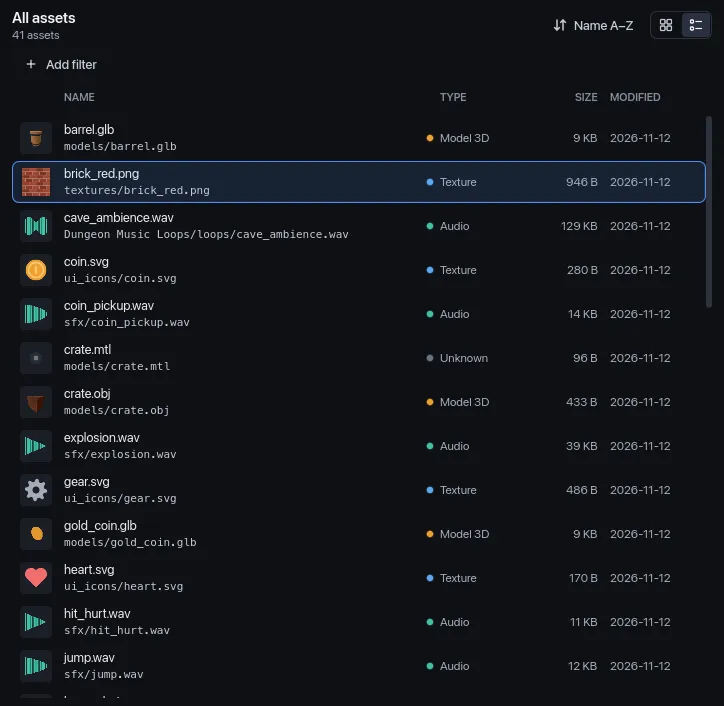
List view shows one asset per row with a small thumbnail, the file name with its path inside its library folder underneath, and the Type, Size and Modified columns. When the window is narrow, Modified and then Type are dropped so the names stay readable.
Select assets
Section titled “Select assets”| To | Do |
|---|---|
| Select one asset | Click it. |
| Select a range | Click the first, then Shift-click the last. |
| Add or remove one asset | Cmd/Ctrl-click it. |
| Move the selection | Arrow keys. ← → go to the previous or next asset, ↑ ↓ a row up or down (in list view, all four move one row). Hold to keep moving. |
| Deselect everything | Esc, the × on the selection bar, or Clear selection in the command palette. |
The arrow keys and Esc work once something is selected and the cursor isn’t in a text field. Clicking an asset takes the cursor out of the search box, so Space opens Quick Look right away.
Changing the search or filters clears the selection, and so does the end of a scan, when the grid reloads.
One selected asset shows in the inspector on the right. Two or more replace it with the selection summary.
The selection bar
Section titled “The selection bar”Select two or more assets and a bar floats at the bottom of the grid:
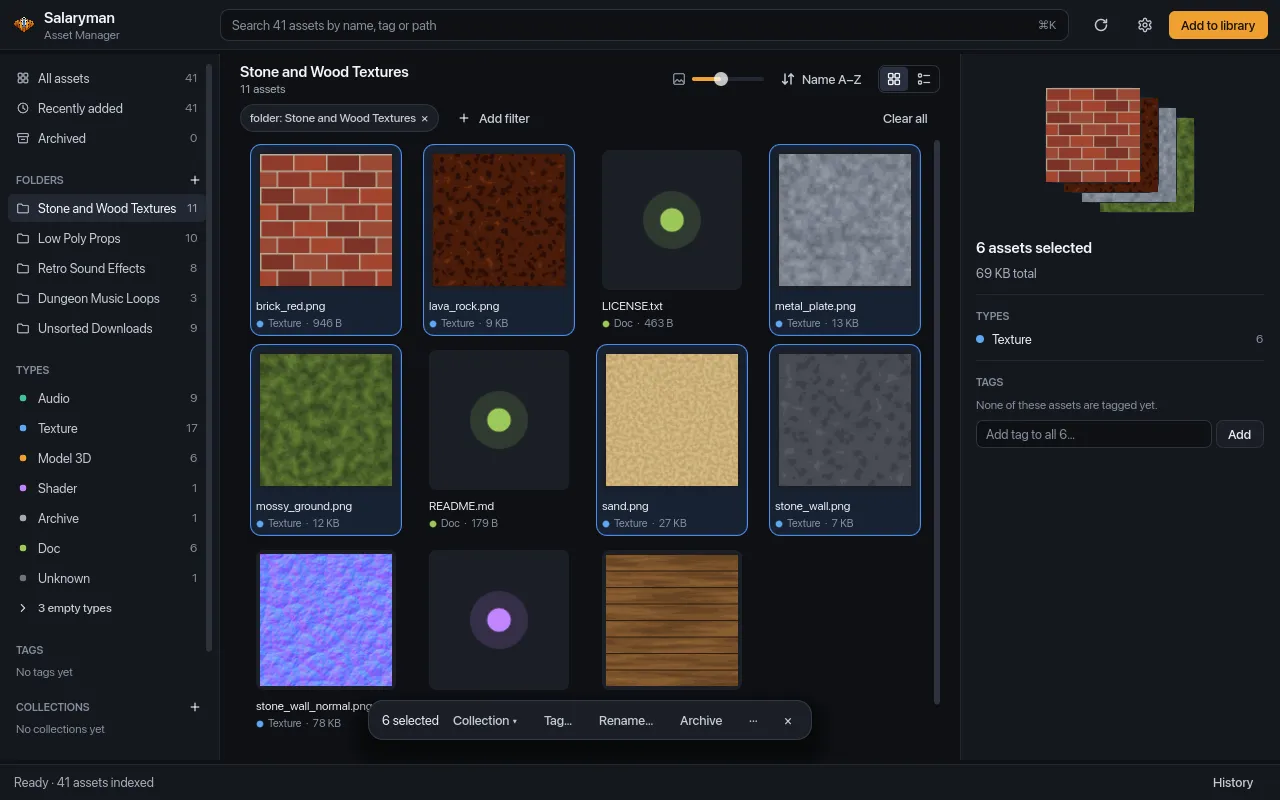
| Button | Does |
|---|---|
| N selected | Shows how many assets are selected. |
| Collection ▾ | Adds the selection to a collection you pick, or to a New collection…. |
| Tag… | Opens the tag picker: type a tag name and press Enter (a new name creates the tag), or click an existing tag. It’s added to every selected asset. |
| Rename… | Opens Bulk rename for the selection (F2). |
| Archive | Archives the selection. Reads Unarchive when every selected asset is already archived. |
| ··· | More actions: Copy N paths, Copy N relative paths and, when the assets are inside a Godot project, Copy N res:// paths. |
| × | Clears the selection (Esc). |
When the grid is narrow, the bar switches to shorter labels (“6”, “Collection”, “Tag”, “Rename”).
In the Missing files view the bar appears for a single asset too, and offers Locate… (for one asset) and Remove from library… instead of Collection, Tag, Rename and Archive. See Health views.
Rename, Archive and Remove from library can be undone with Cmd/Ctrl+Z; see Undo.
Selection summary
Section titled “Selection summary”With two or more assets selected, the right-hand panel shows a summary instead of the inspector:
- up to four stacked thumbnails, N assets selected and their total size;
- Types: how many of each type are in the selection;
- Tags: On all N lists tags every selected asset has (click one’s × to remove it from all of them); On some lists tags only some have, as “kitbash · 2 of 4” (click one to add it to the rest);
- Add tag to all N…: type a tag and press Enter or click Add to tag every selected asset.
Tags and collections has more on tagging many assets at once.
Context menu
Section titled “Context menu”Right-click an asset for its menu. If you right-click an asset that’s part of a multi-selection, the menu acts on the whole selection and says how many (“Rename 3 assets…”). Right-clicking an asset outside the selection acts on just that asset and leaves the selection alone.
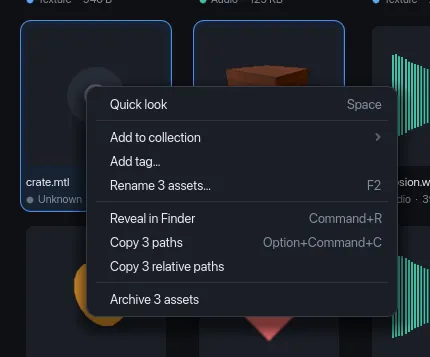
| Item | Does |
|---|---|
| Quick look | Opens Quick Look on the asset you clicked (Space). |
| Add to collection | A submenu with your collections, then New collection…. |
| Add tag… | Opens the tag picker. |
| Rename… | Opens Bulk rename (F2). |
| Reveal in Finder | Shows the file in Finder, Explorer or your file manager (Cmd/Ctrl+R). Greyed out when the file is missing on disk. On macOS and Windows the file is selected; on Linux its folder opens. |
| Copy path | Copies the full path, one per line for several assets (Cmd+Option+C / Ctrl+Alt+C). |
| Copy relative path | Copies the path inside its library folder, with / separators. |
| Copy as res:// path | Only shown when the asset is inside a Godot project (a folder with a project.godot at or above it). Copies the res:// path to use in Godot. |
| Archive / Unarchive | Archives the asset, or unarchives it if it’s archived. |
The keyboard shortcuts in the table work on the selection without opening the menu. The status bar confirms copies (“Copied 3 paths to clipboard”).
Drag and drop
Section titled “Drag and drop”Dragging assets isn’t supported yet: you can’t drop them on a collection in
the sidebar or into another app. Use Collection ▾ or
Add to collection, and Reveal in Finder or Copy path to get a
file into another program. Dropping a folder or a .zip from your file
manager onto the window does work: it opens
Add to library.
See also
Section titled “See also”- Inspector and previews: what you see for one selected asset.
- Bulk actions and undo: rename, archive and remove many assets.
- Keyboard shortcuts.