
Auto-tag rules
An auto-tag rule adds a tag to every asset whose path or file name matches a
pattern, each time the library is scanned. Use them for tags that follow from
how your packs are laid out: everything under an sfx folder gets sfx,
every *_normal.png gets normal map.
Rules only ever add tags. They never take a tag off an asset, even after you change or delete the rule.
Where rules live
Section titled “Where rules live”Open Settings (Cmd/Ctrl+,) and choose the Auto-tag rules tab. The number next to the tab is how many rules you have.
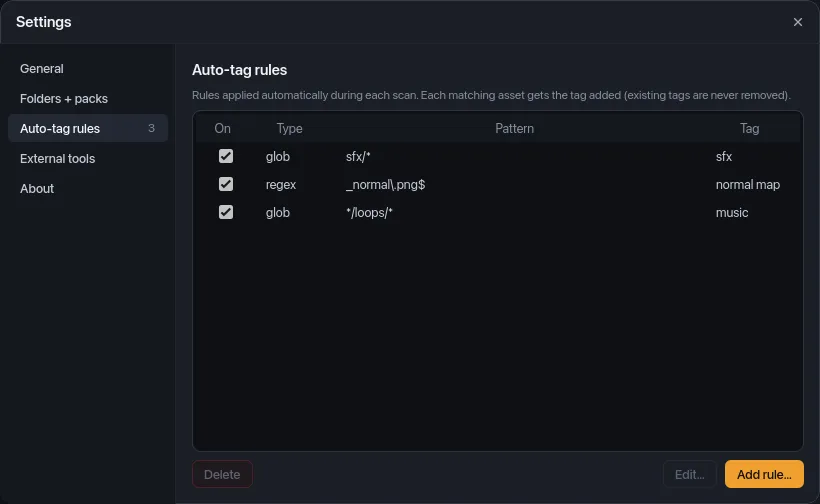
The table has one row per rule:
| Column | What it shows |
|---|---|
| On | Whether the rule runs. Click the checkbox to turn a rule off or on; the change is saved immediately. |
| Type | glob (path glob) or regex (file name regular expression). |
| Pattern | The pattern the rule matches. |
| Tag | The tag it adds. |
- Add rule… opens the rule editor for a new rule.
- Edit… opens the selected rule. Select a row first.
- Delete removes the selected rule right away, with no confirmation and no undo. Tags the rule already added stay on their assets.
The rule editor
Section titled “The rule editor”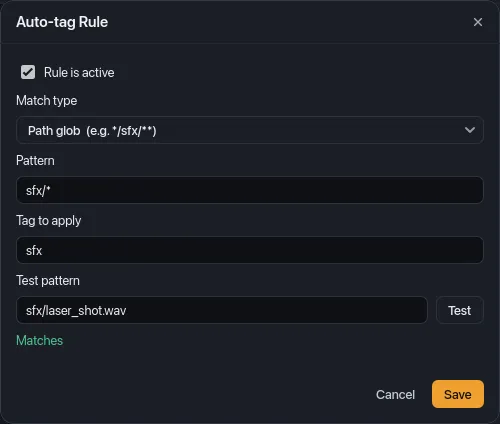
| Field | What it does |
|---|---|
| Rule is active | Unticked, the rule is saved but doesn’t run (same as the On checkbox). |
| Match type | Path glob matches the asset’s path; Filename regex matches its file name. See below. |
| Pattern | The glob or regular expression. Required. |
| Tag to apply | The tag to add. A name you haven’t used yet creates the tag when you save. Required. |
| Test pattern | Type a sample path and click Test to see Matches or No match before you save. |
Click Save to keep the rule or Cancel to discard your changes.
Path glob
Section titled “Path glob”A path glob is matched against the asset’s path inside its library
folder, with forward slashes and no leading slash. The name of the library
folder itself isn’t part of it. For a pack added from
/Users/me/Packs/Retro Sound Effects, the file
…/Retro Sound Effects/sfx/jump.wav has the path sfx/jump.wav. A pack
imported from a zip keeps the zip’s top folder, if it has one:
Dungeon Music Loops/loops/cave_ambience.wav. The inspector’s File
details → Path shows the exact path a rule sees.
The pattern has to match the whole path:
*matches any run of characters, including/, so it spans folders.**means the same as*.?matches exactly one character, except..- Everything else matches itself, and upper and lower case are different
(
sfx/*doesn’t matchSFX/jump.wav).
| Pattern | Matches | Doesn’t match |
|---|---|---|
sfx/* |
sfx/jump.wav, sfx/ui/click.wav |
audio/sfx/jump.wav |
*/sfx/* |
audio/sfx/jump.wav |
sfx/jump.wav (nothing before sfx/) |
*sfx/* |
both of the above | |
*.ogg |
every .ogg file in any folder |
music.OGG |
*/loops/* |
Dungeon Music Loops/loops/cave_ambience.wav |
loops/intro.wav |
Filename regex
Section titled “Filename regex”A filename regex is matched against the file name only (with its extension,
without any folders). It matches if it’s found anywhere in the name, so
add ^ and $ to pin it to the start or end. It’s case-sensitive unless you
start it with (?i).
| Pattern | Matches |
|---|---|
_normal\.png$ |
stone_wall_normal.png |
(?i)_n\.png$ |
wall_n.png, Wall_N.PNG |
^ui_ |
ui_button.png, ui_click.wav |
(?i)footstep |
Footstep_01.wav, grass_footsteps.ogg |
Test checks only the file name part of the sample you type, the same way a scan does. If the expression has a syntax error, Test says Invalid regex. A rule saved with an invalid expression matches nothing.
When rules run
Section titled “When rules run”Rules run during every scan, on every file the scan indexes:
- when you add a folder or zip with Add to library… (the dialog says “N auto-tag rules will apply” when you have active rules),
- when you rescan one folder or click the rescan button in the top bar (Scan all roots in the command palette),
- when folder watching picks up a change and rescans that folder.
A scan looks at files that are new, changed or unchanged alike, so a rule you add today tags your existing assets the next time their folder is scanned. Saving a rule doesn’t scan anything by itself; rescan to apply it now.
Every active rule that matches adds its tag, so one file can get several tags
from several rules. Files the scanner skips (such as Godot’s .import files)
are never tagged.
Things to know
Section titled “Things to know”- Rules never remove tags. Editing a rule’s pattern, turning it off or deleting it leaves the tags it already added. Remove them by hand: filter by the tag, select the assets and click the tag’s chip under On all N (see Tags and collections).
- If you remove a tag by hand and a rule still matches the asset, the next scan adds it back. Turn the rule off first.
- Tags added by rules can’t be undone with Cmd/Ctrl+Z.
- Rules are stored in your library database, so they apply to every folder in the library.