
Packs and licenses
Most game assets come in packs, and most packs come with a license that says
how you may use them and whom to credit. The app keeps track of both, so an
export can write a CREDITS.md for you.
What a pack is
Section titled “What a pack is”A pack is a small record attached to a set of assets:
| Field | What it’s for |
|---|---|
| Pack name | Shown in the inspector, Settings and CREDITS.md. Required. |
| Author | Who made it. Credited as “by …” in the inspector and as Author in CREDITS.md. |
| Source URL | Where you got it. The inspector’s Source ↗ opens it in your browser. |
| License | The license text, or just its name or SPDX id (CC0-1.0). The first line is what the app shows as the license. |
Every asset belongs to at most one pack. Packs don’t move or copy any files.
Create a pack
Section titled “Create a pack”When you add a folder or zip
Section titled “When you add a folder or zip”The Add to library dialog (see Add your first library) has a This is an asset pack checkbox. It’s ticked for you when the source is a zip, or when the folder or zip has a license file at its top level. Ticked, it shows the pack fields:
- Pack name starts as the folder’s name, or the zip’s name without
.zip. - License is filled with the license file’s text (its first 2,000 characters), with a note saying “Detected from LICENSE.txt” (or whichever file it read).
- Author and Source URL start empty.
When you click Add & scan N files, the scan assigns every file in that folder or zip to the new pack.
A license file counts when it sits at the top of the folder or zip and is
named LICENSE, LICENCE, COPYING or CREDITS (any case), with no
extension or .txt or .md. If there are several, LICENSE wins over
COPYING, which wins over CREDITS. For a zip whose files are all inside a
single folder, that folder counts as the top.
A zip is extracted into the app’s data folder when you add it (see Data location); the original zip isn’t changed.
For a folder that’s already in the library
Section titled “For a folder that’s already in the library”Open Settings → Folders + packs and click Mark as pack… in the folder’s Pack column (it’s also in the folder’s ··· menu). This opens Add to library for that folder with the pack section ticked. Fill it in and add it again: the folder isn’t added twice, and its rescan assigns its files to the pack.
From the License fixer
Section titled “From the License fixer”The License fixer can create a pack for one folder or several (Assign to pack… → Create pack from folder…), or put a folder’s assets into a pack you already have.
See an asset’s pack
Section titled “See an asset’s pack”Select an asset. The Pack card in the inspector shows:
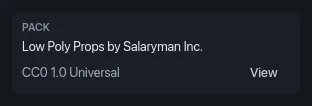
- The pack’s name and author (“Low Poly Props by Salaryman Inc.”).
- Source ↗, when the pack has a source URL.
- The license line: the first line of the pack’s license text.
- View, which opens the license file found next to the asset in your default app, or shows the pack’s full license text when there’s no file.
An asset with no pack but with a license file nearby gets a card headed License instead, showing the file’s first line. With neither, the card isn’t shown.
To see every asset of a pack, use Add filter → Pack above the grid (see Search and filters).
Edit a pack
Section titled “Edit a pack”In Settings → Folders + packs, click the license chip in the folder’s Pack column, or choose Edit pack info… from its ··· menu. (The ··· menu on a folder in the sidebar also has Edit pack info…; it opens Settings, where you pick Folders + packs.)
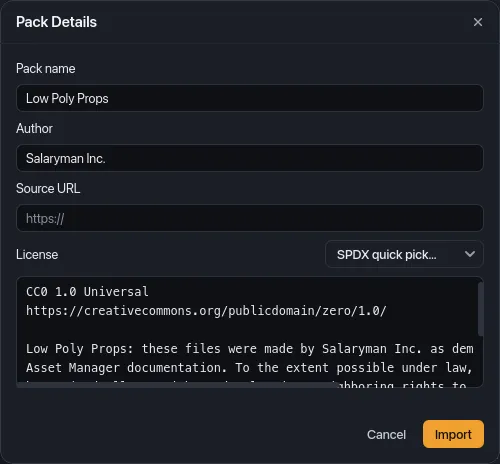
Change Pack name, Author, Source URL or License, then click
Import to save. SPDX quick pick… replaces the license text with one of
these ids: CC0-1.0, CC-BY-4.0, CC-BY-SA-4.0, CC-BY-3.0, MIT,
OFL-1.1, Apache-2.0, GPL-3.0. If you want to keep the full text, put
the id on the first line yourself instead, since the first line is what the
inspector, Settings and CREDITS.md show.
Packs in Settings
Section titled “Packs in Settings”Settings → Folders + packs lists every library folder:
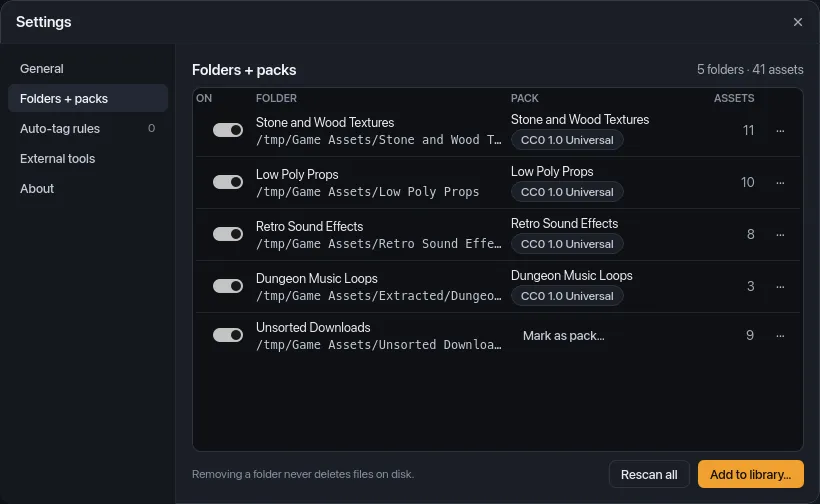
- The Pack column shows the folder’s pack (the one most of its assets belong to) with a chip holding the first line of its license, or “No license” when the license field is empty. Click the chip to edit the pack. Folders without a pack show Mark as pack….
- The ··· menu has Edit pack info… and Remove pack info… for a folder with a pack, or Mark as pack… for one without.
Remove pack info… asks first: “Remove the pack info for “…”? Assets stay in the library; only the pack’s name, author and license are forgotten.” The assets lose their pack, so unless a license file sits near them they become unlicensed. This can’t be undone with Cmd/Ctrl+Z.
Packs not linked to a folder
Section titled “Packs not linked to a folder”When no asset belongs to a pack any more (for example, you removed its folder from the library), the pack moves to Packs not linked to a folder below the table. It’s kept so you can still edit it or remove it there with Edit pack info… and Remove pack info….
License files found during scans
Section titled “License files found during scans”Besides the pack’s license, every scan looks for license files near each asset and remembers them:
- Files in the same folder as the asset whose names start with
LICENSE,COPYING,CREDITSorREADME(any case, any extension). - If there are none, the nearest parent folder, up to the library
folder, that has a file starting with
LICENSE,LICENCE,COPYINGorCREDITS. READMEs further up don’t count; they usually describe a whole collection of downloads, not one pack.
This happens again on every scan, so a license file you add or delete is
picked up the next time the folder is scanned. The inspector’s card and
CREDITS.md use these files.
Recognizing licenses (SPDX)
Section titled “Recognizing licenses (SPDX)”The License fixer reads the start of license files and READMEs (the first 40 lines) to name the license with an SPDX id. It recognizes:
| SPDX id | When the text says, for example |
|---|---|
| any | SPDX-License-Identifier: … (always wins) |
CC-BY-4.0, CC-BY-SA-3.0, CC-BY-NC-ND-4.0, … |
CC BY 4.0, CC-BY-SA 3.0, “Creative Commons Attribution-ShareAlike 4.0” |
CC0-1.0 |
CC0, “Creative Commons Zero”, “public domain dedication” |
Unlicense |
“Unlicense”, “free and unencumbered software” |
OFL-1.1 |
“SIL Open Font License”, OFL |
Apache-2.0 |
“Apache License, Version 2.0” |
LGPL-3.0 |
“GNU Lesser General Public License” |
GPL-2.0, GPL-3.0 |
“GNU General Public License” (version 2 when it says so) |
BSD-3-Clause, BSD-2-Clause |
“BSD 3-Clause”, “BSD-2-Clause” |
MIT |
“MIT License”, “Licensed under MIT”, “Permission is hereby granted, free of charge” |
Zlib |
“zlib License” |
The id shows as a badge on the fixer’s evidence and is filled in when you create a pack from a folder there.
What “unlicensed” means
Section titled “What “unlicensed” means”An asset has a license when any of these is true:
- It belongs to a pack. This holds even when the pack’s License field is empty; the License fixer lists those packs separately so you can fill them in.
- A scan found a license file for it (see above).
- You chose a license file for it in the License fixer.
- You marked it as your own work in the License fixer.
Every other asset is unlicensed. One rule decides this everywhere, so these always agree:
- the Unlicensed count under Health in the sidebar (which leaves out archived assets and missing files),
- the “no license” warning in the export dialog,
- the No License Detected section of an exported
CREDITS.md.
Click Health → Unlicensed to fix them in the License fixer.
Files that show up in a pack’s folder after it was imported (found by a rescan or folder watching) aren’t added to the pack. They’re usually still covered by the pack’s license file nearby; if not, they appear in the License fixer, where Assign to pack… adds them.