
Tags and collections
Tags and collections are the two ways to organize assets beyond the folders they live in. Neither one touches your files on disk.
- A tag is a label like
dungeonortileable. An asset can have any number of tags, and every tag is shared across the whole library. - A collection is a named list of assets, such as everything you use in one level. An asset can be in any number of collections. Collections are what you export into a game project.
Tag one asset
Section titled “Tag one asset”Select an asset and use the Tags section of the inspector:
- Type a name in Add a tag….
- Press Enter or click +.
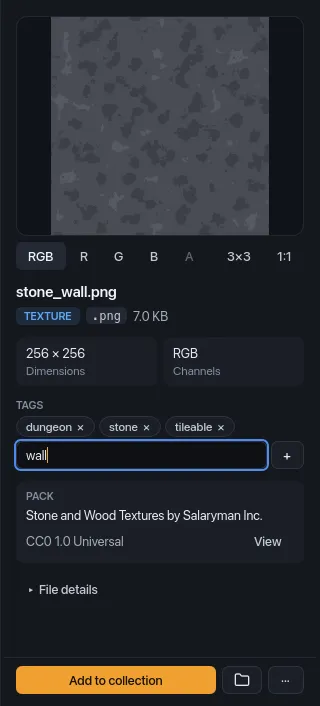
A name you haven’t used before creates the tag. Tag names ignore case: if
dungeon exists and you type Dungeon, the asset gets the existing
dungeon tag.
Each tag shows as a chip. Click a chip (dungeon ×) to take that tag off the
asset.
Tag several assets at once
Section titled “Tag several assets at once”Select two or more assets (Cmd/Ctrl-click or Shift-click in the grid), then use any of these:
- Tag… in the selection bar at the bottom of the grid.
- Add tag… in the right-click menu. If you right-click an asset that is part of the selection, it applies to the whole selection; otherwise only to the asset you clicked.
- Add tag to selected assets… in the command palette (Cmd/Ctrl+K).
Each opens the tag picker, headed “Add tag to N assets”. Type a name and press Enter (a new name creates the tag), or click one of your existing tags in the list below; typing narrows the list. The status bar confirms with “Tagged N assets with “name””.
With two or more assets selected, the panel on the right shows their tags in two groups:
- On all N: tags every selected asset has. Click one to remove it from all of them.
- On some · click to add to all: tags only some have, shown as
kitbash · 2 of 4. Click one to give it to the rest.
The Add tag to all N… field and Add button under them add a tag to every selected asset.
Browse by tag
Section titled “Browse by tag”- The Tags section of the sidebar shows every tag as a chip with a count. The count is how many assets have the tag, not counting archived assets or missing files. Click a chip to filter the grid by it; click it again to remove the filter.
- With more than one tag chip on, the grid shows assets that have any of those tags.
- Each active tag also appears as a
tag: namechip above the grid. Click its × to remove it. Add filter → Tag adds one from there. - The search box matches tag names as well as file names and paths.
- In the command palette, start with
#to list only tags. Picking one shows the assets with that tag.
See Search and filters for combining tags with other filters.
Remove a tag
Section titled “Remove a tag”Click the tag’s chip in the inspector (one asset) or under On all N (every selected asset). Removing a tag can be undone with Cmd/Ctrl+Z, which puts it back on exactly the assets that lost it. Adding a tag isn’t on the undo stack; remove the tag to take it back off. See Bulk actions and undo.
If an auto-tag rule adds a tag, removing it by hand only lasts until the next scan; the rule adds it again. Turn the rule off first.
Collections
Section titled “Collections”Create a collection
Section titled “Create a collection”Click + next to Collections in the sidebar (“New collection…”). In the New Collection dialog, type a name under Collection name and click Create (or press Enter).
Collection names are unique, ignoring case. If the name is taken, the dialog stays open and says “A collection named ‘…’ already exists.”
You can also create a collection and fill it in one step: select assets, then choose New collection… from the selection bar’s Collection ▾ menu or from Add to collection in the right-click menu. After you name it, the status bar says “Collection created with N assets.”
Add assets to a collection
Section titled “Add assets to a collection”- Collection ▾ in the selection bar (two or more assets selected): pick a collection.
- Add to collection in the right-click menu: pick a collection from the submenu. Like Add tag…, it applies to the whole selection when you right-click inside it.
- Add to collection at the bottom of the inspector: adds the asset you’re looking at.
New members go to the end of the collection. Adding an asset that’s already in it does nothing, so it’s safe to add the same selection twice. The status bar says “Added N assets to …” (N counts only new members), or “Added to …” when you add from the inspector.
Dragging assets onto a collection in the sidebar isn’t supported; use one of the menus above.
Open a collection
Section titled “Open a collection”Click a collection in the sidebar. The grid shows only its assets, a
collection: name chip appears above the grid, and the collection header
takes the top of the center pane.
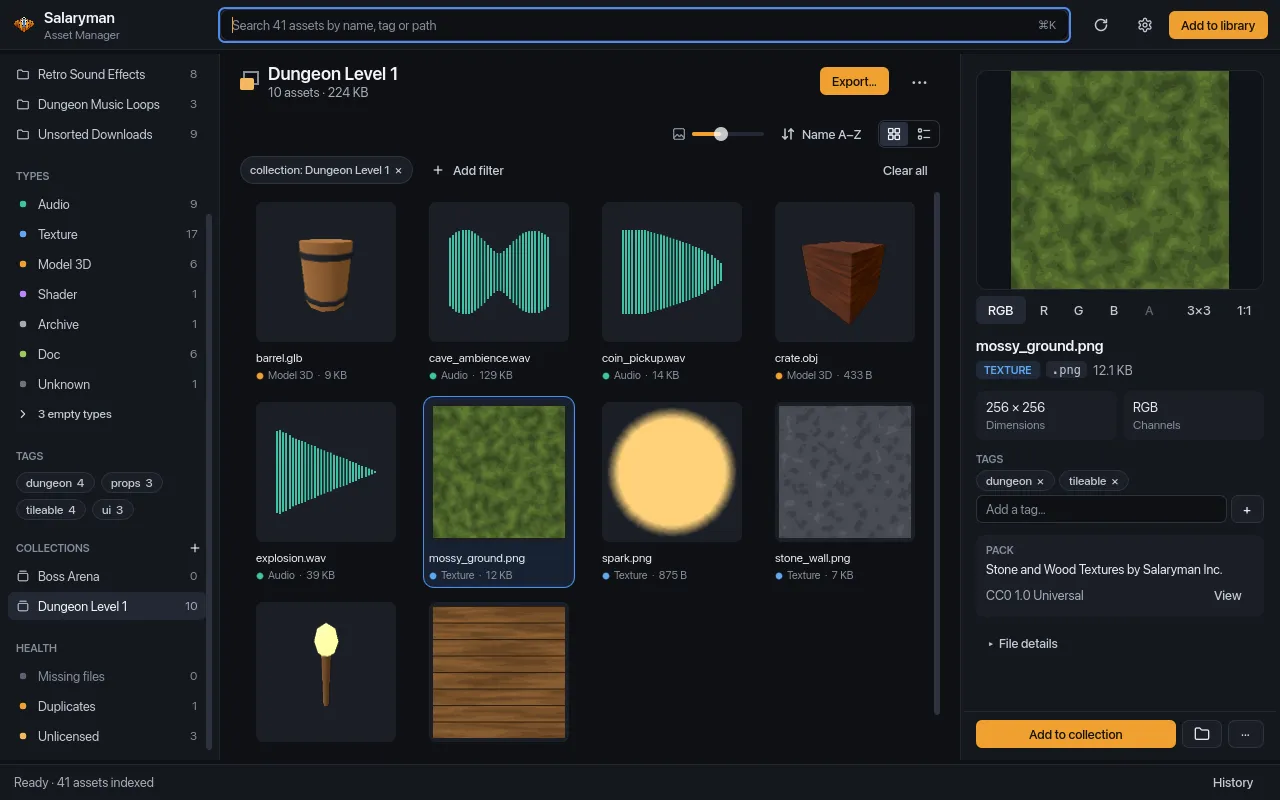
The header shows:
- The collection’s name and “N assets · size”. The count and size leave out archived assets; when some members are archived it adds “· N archived”.
- Export…, which opens the export dialog.
- •••, a menu with Rename, Duplicate and Delete….
Archived assets stay in their collections. They’re hidden from the grid like everywhere else, and an export leaves them out unless you ask for them.
Rename
Section titled “Rename”- In the header: ••• → Rename turns the name into a text field. Press Enter to save or Esc to cancel. If another collection already has the name, the field stays open with “A collection named “…” already exists.”
- In the sidebar: right-click the collection and choose Rename, type the new name and press Enter (or click away). A blank name or one that’s already taken keeps the old name.
Duplicate
Section titled “Duplicate”••• → Duplicate makes a copy with the same assets in the same order, named “name copy” (then “name copy 2”, and so on), and switches the grid to the copy. Use it to start a variant of a level without touching the original.
Delete
Section titled “Delete”••• → Delete… in the header, or right-click the collection in the sidebar and choose Delete. The confirmation reads “Delete the collection “…”? Its N assets stay in your library; only the collection is removed.” Cancel is selected by default.
Only the collection goes: its assets, their files and their tags are untouched. Deleting a collection can’t be undone with Cmd/Ctrl+Z.
Take assets out of a collection
Section titled “Take assets out of a collection”The app doesn’t have a command to take a single asset out of a collection yet. Assets do leave every collection they’re in when you remove them from the library (Remove from library… for missing files, or removing their folder); undoing that removal puts them back in their collections.
Export
Section titled “Export”Click Export… in the header, right-click the collection in the sidebar and choose Export…, or run Export current collection… from the command palette while the collection is open. See Export for every option, and the Export a collection tutorial for a walkthrough.